
Instructors
Create instructor profiles, assign them to courses and link them to Joomla users.
Overview
Instructors are the people responsible for courses. Every course must be assigned an instructor. The instructor's name and profile appear on the course detail page and on certificates.
Instructors in EasyLearn are not the same as Joomla users — they are separate records with their own name, email, bio and image. However, instructors can be linked to Joomla users, which gives those users the ability to handle quiz reset requests for their courses.
Creating an instructor
Go to Components → EasyLearn → Instructors and click New.
From the frontend admin menu, click Instructors, then click New Instructor.
Instructor fields
| Field | Required | Description |
|---|---|---|
| Name | Yes | The instructor's display name. Shown on course pages and certificates. |
| No | Email address. Used for certificate expiry notifications (if instructor notifications are enabled on the course). | |
| Bio | No | Rich text biography displayed on the course detail page. Supports HTML formatting. |
| Image | No | Profile photo displayed alongside the instructor's bio. Uploaded via AJAX (the instructor must be saved first). |
| User groups | No | Joomla user groups this instructor belongs to. Used to determine which categories and courses the instructor appears in. Multi-select. |
| Linked users | No | Joomla user accounts linked to this instructor. Linked users can handle quiz reset requests for courses assigned to this instructor. |
| Status | No | Published or unpublished. Unpublished instructors cannot be assigned to new courses. |
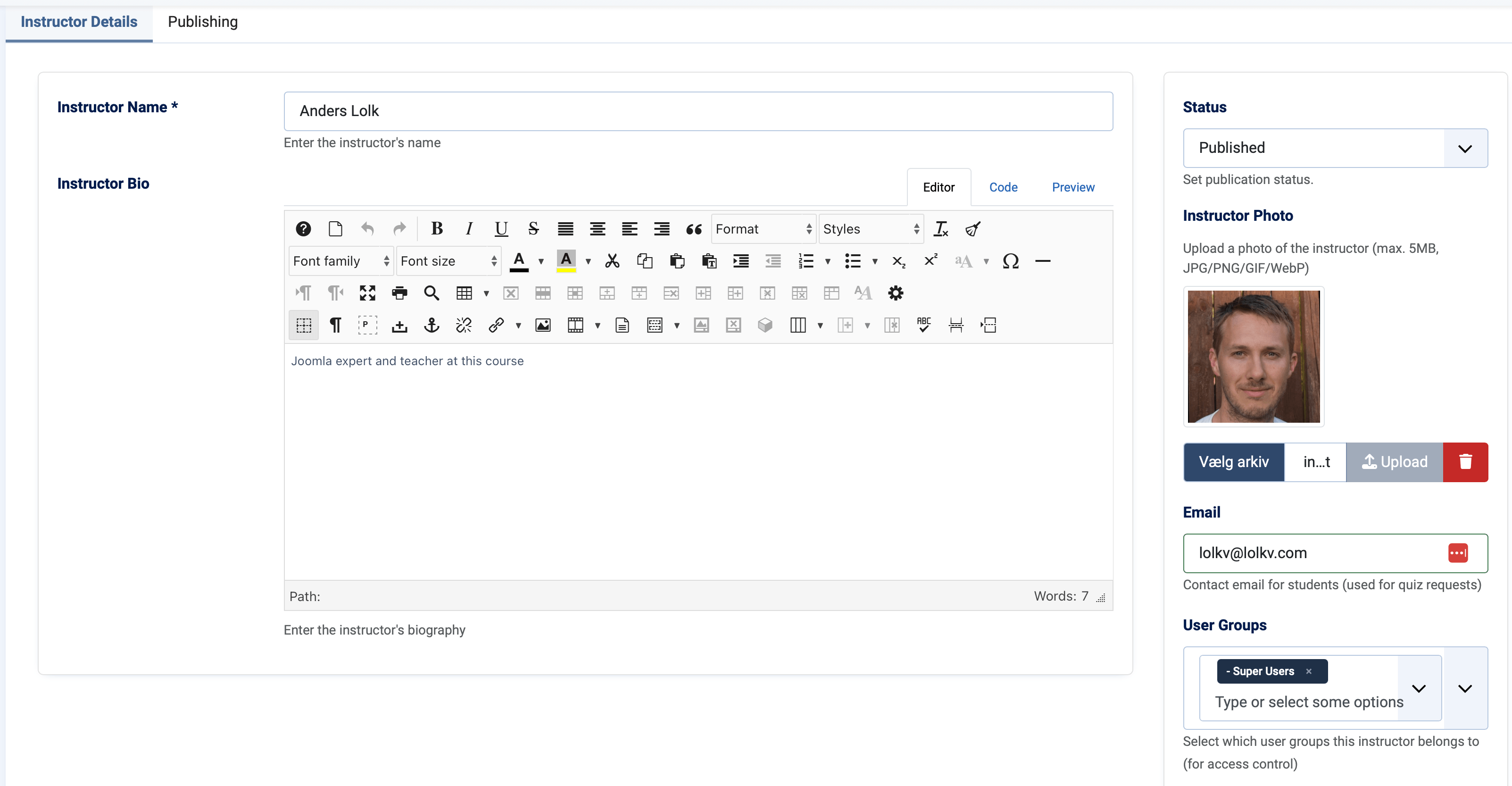
Instructor user groups
The User groups field controls which frontend administrators can see and manage this instructor. It works in combination with the category permission system:
- In the frontend admin, the instructor list is filtered to only show instructors whose user groups overlap with the categories the current user has admin access to.
- When creating a course in the frontend admin, the instructor dropdown only shows instructors whose user groups match the selected category.
If your instructors should be available across all categories, assign them to a broad user group that covers your entire organisation. If they should only appear within specific departments, assign them to the department-specific user group.
Linked users
The Linked users field connects the instructor record to actual Joomla user accounts. This has one primary purpose:
- Reset request handling — When a student submits a quiz reset request, linked users for the course's instructor can view, approve and reject the request from the frontend admin.
An instructor record is a profile (name, bio, image) that appears on courses and certificates. Linked users are the Joomla accounts of real people who act as that instructor. One instructor record can have multiple linked users (e.g. a team of trainers), and the same Joomla user can be linked to multiple instructors.
Managing instructors
Instructor list
Both the backend and frontend admin show a list of instructors with filters:
- Search — Search by instructor name.
- User group — Filter by user group assignment.
- Status — Filter by published or unpublished.
In the frontend admin, the list only shows instructors that match the current user's category admin permissions.
Uploading a profile image
The instructor must be saved before you can upload an image. After saving, use the image upload field to select and upload a photo. Images can be deleted and replaced at any time.
Deleting an instructor
An instructor can only be deleted if they are not assigned to any courses. If you need to remove an instructor who has courses, reassign those courses to a different instructor first, or set the instructor to unpublished to hide them from new course assignments.
