
Component settings
Configure global options for file uploads, colour themes, quiz defaults and certificate settings.
Accessing component settings
Global settings are only available in the Joomla backend. Go to Components → EasyLearn, then click the Options button in the toolbar. The settings are organised into five tabs: Basic Settings, Colours, Quiz Settings, Certificates and JCE Editor.
Many settings follow an inheritance hierarchy: Global → Category → Course. Values set here act as the global default. Categories can override them, and courses can override categories. Empty values at lower levels automatically inherit from the level above. See Permissions & Access for details.
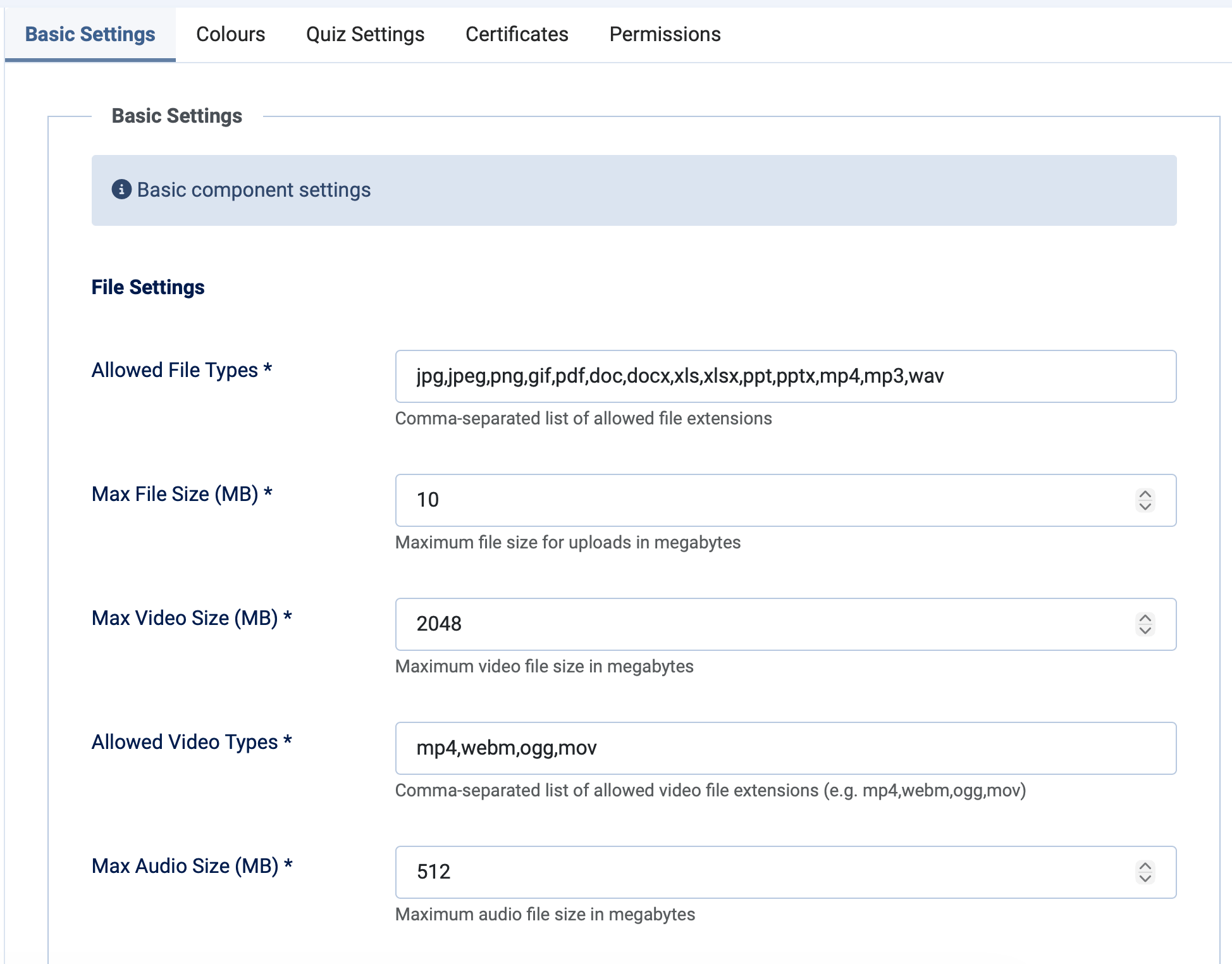
File upload settings
These settings control what files can be uploaded across the entire component. They apply globally and cannot be overridden at category or course level.
| Setting | Default | Description |
|---|---|---|
| Allowed file types | jpg, jpeg, png, gif, pdf, doc, docx, xls, xlsx, ppt, pptx, mp4, mp3, wav |
Comma-separated list of permitted file extensions for lesson and course file uploads. |
| Max file size | 10 MB | Maximum size for general file uploads (lesson files, course files). Range: 1–1,000 MB. |
| Max video size | 2,048 MB | Maximum size for video content block uploads. Range: 1–5,000 MB. |
| Allowed video types | mp4, webm, ogg, mov |
Comma-separated list of permitted video file extensions. |
| Max audio size | 512 MB | Maximum size for audio content block uploads. Range: 1–2,048 MB. |
| Allowed audio types | mp3, wav, ogg, aac, m4a, flac |
Comma-separated list of permitted audio file extensions. |
Your server's PHP configuration also affects uploads. Make sure upload_max_filesize and post_max_size in php.ini are large enough to match your EasyLearn settings. Video uploads use chunked uploading, so this mainly affects smaller files.
General settings
| Setting | Default | Description |
|---|---|---|
| Courses per page | 25 | Number of courses shown per page in the course catalog. Range: 5–100. |
| Default course image | None | Fallback image used when a course has no image set. Upload here to set a global default. |
| Enable versioning | Yes | When enabled, EasyLearn saves a version history each time a course is saved, allowing you to restore previous versions. |
| Max versions | 3 | Maximum number of saved versions per course (only shown when versioning is enabled). Range: 1–10. |
Colour theme
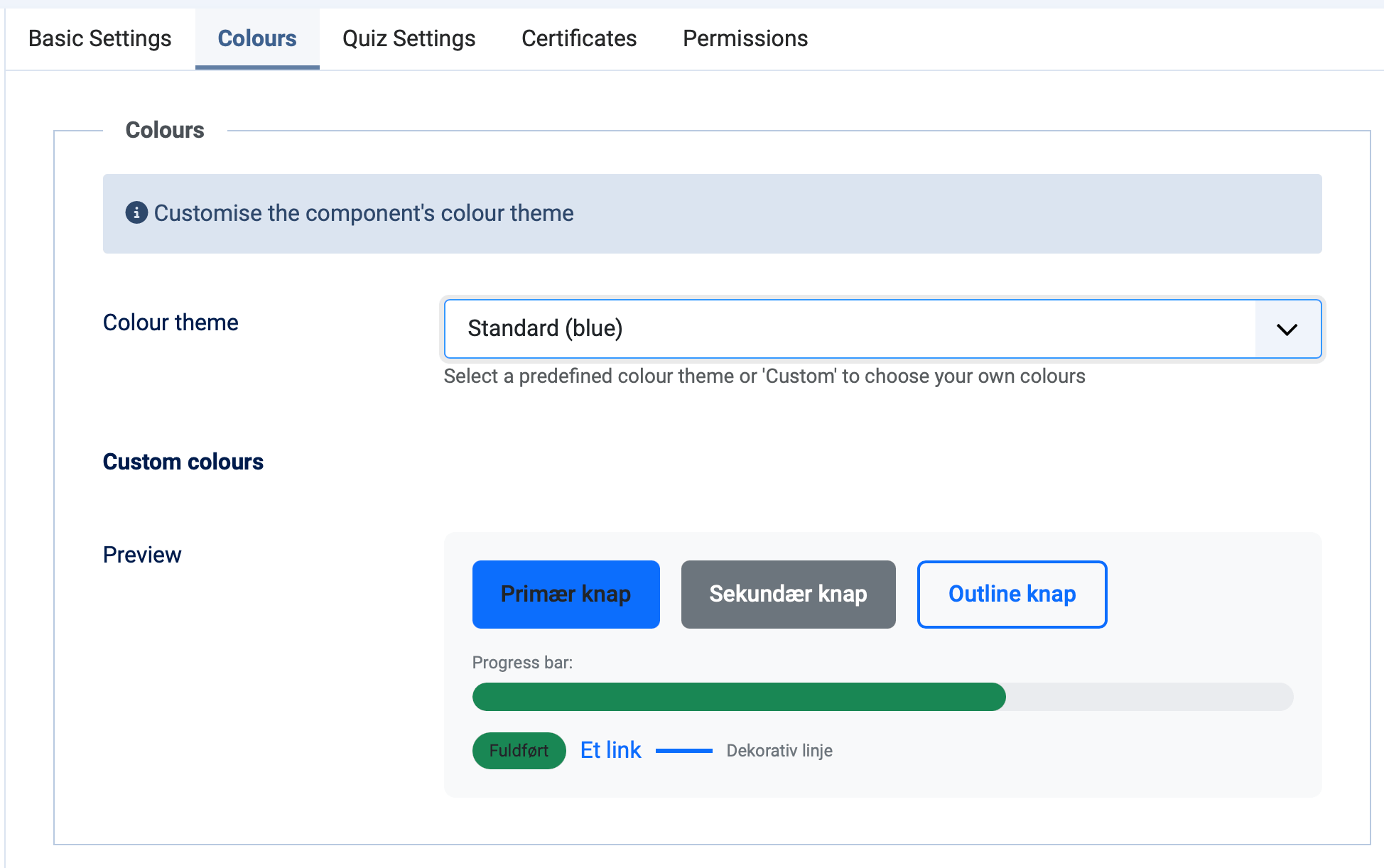
The colour settings control the visual theme of all EasyLearn pages on the frontend. Colours only affect elements inside the EasyLearn component — they do not change your site header, footer or menu.
Colour presets
EasyLearn includes four built-in presets and a custom option:
| Preset | Primary | Secondary | Success | Accent |
|---|---|---|---|---|
| Standard | #0d6efd (blue) |
#6c757d (grey) |
#198754 (green) |
#0d6efd (blue) |
| Green | #198754 (green) |
#6c757d (grey) |
#20c997 (teal) |
#198754 (green) |
| Dark | #212529 (dark) |
#495057 (dark grey) |
#198754 (green) |
#0d6efd (blue) |
| Warm | #fd7e14 (orange) |
#6c757d (grey) |
#198754 (green) |
#D4A574 (sand) |
| Custom | Pick your own colours using colour pickers (see below). | |||
Custom colours
When you select the Custom preset, four colour picker fields appear:
- Primary — Main brand colour, used for buttons, links, active states and navigation.
- Secondary — Used for subtle elements like muted text and secondary buttons.
- Success — Used for progress bars, completion badges and success messages.
- Accent — Used for decorative elements like certificate borders and highlights.
A live preview shows how the selected colours look together.
Colours are inheritable settings. You can set a global colour theme here, then override it at the category level (e.g. different departments get different brand colours) or even at individual course level.
Quiz defaults
These settings define the default values for all quizzes across the system. They are inheritable — categories and courses can override them.
| Setting | Default | Description |
|---|---|---|
| Default passing message | Language default | Message shown when a student passes a quiz. Leave empty to use the built-in language string. Supports HTML. |
| Default failing message | Language default | Message shown when a student fails a quiz. Leave empty to use the built-in language string. Supports HTML. |
| Default passing percentage | 70% | The minimum score required to pass a quiz. Range: 0–100%. Individual quizzes can override this value. |
When the message fields are left empty, EasyLearn uses the default message from the active language pack. This means the messages automatically match the language of your site (English, Danish, German or French).
Certificate settings
Global certificate settings define defaults for all courses that have certificates enabled. These are inheritable — categories and courses can override them.
Basic settings
| Setting | Default | Description |
|---|---|---|
| Certificate ID prefix | EL |
Prefix for generated certificate numbers (e.g. EL-2026-A8SKK6). Max 10 characters. Useful for identifying certificates from different organisations. |
| Default validity period | 0 (no expiry) | Number of days a certificate is valid. Set to 0 for certificates that never expire. Range: 0–3,650 days (10 years). Individual courses can override this. |
| Certificate logo | None | Default logo shown on all certificates. Categories and courses can override with their own logo. |
Email templates
EasyLearn can send emails when certificates are issued and when they are about to expire. The component settings define the global default templates. There are three groups of email templates:
| Template group | Emails | Recipient |
|---|---|---|
| Certificate issued | Subject + body | The student, when a certificate is issued |
| Student reminders | Reminder (before expiry) + Expired (after expiry) | The student |
| Instructor reminders | Reminder + Expired | The course instructor |
| Extra recipients | Reminder + Expired | Additional email addresses (e.g. HR departments) |
Each template has a subject line and body field. Leave them empty to use the built-in language defaults.
Available placeholders
You can use these placeholders in all email templates. They are automatically replaced with the actual values when the email is sent:
| Placeholder | Replaced with |
|---|---|
{student_name} |
The student's full name |
{user_name} |
Same as {student_name} |
{course_title} |
Title of the course |
{certificate_number} |
The certificate ID (e.g. EL-2026-A8SKK6) |
{issued_at} |
Date the certificate was issued |
{expires_at} |
Expiry date of the certificate |
{days_until_expiry} |
Number of days until (or since) expiry |
{instructor_name} |
Name of the course instructor |
{renewal_link} |
Link to the course for certificate renewal |
Which settings are inheritable?
The following settings follow the Global → Category → Course inheritance chain. A value set at a lower level overrides the one above it. An empty value inherits from the next level up.
| Setting | Tab |
|---|---|
| Colour preset and custom colours | Colors |
| Quiz passing/failing messages | Quiz |
| Quiz default passing percentage | Quiz |
| Certificate ID prefix | Certificate |
| Certificate default validity | Certificate |
| Certificate logo | Certificate |
| All email templates (subjects and bodies) | Certificate |
Non-inheritable settings
These settings apply globally only and cannot be overridden at category or course level:
- File upload limits and allowed types (security/server capacity)
- Courses per page (UI setting)
- Default course image (UI setting)
- Versioning (platform feature)

JCE Editor integration
If you use the popular JCE Editor for editing lesson content, EasyLearn can automatically configure a JCE profile that points the file browser to each course's upload folder. The JCE Editor tab provides a one-click setup button for this.
What the setup does
When you click Configure JCE profile, EasyLearn creates (or updates) a JCE profile named EasyLearn with the following:
- The file browser directory is set to
media/com_easylearn/uploads/$course/$subfolder, where$courseresolves to the current course's folder and$subfoldertolektioner. - The profile is scoped to
com_easylearnonly, so it does not affect your existing JCE profiles for articles or other components. - Upload size limit is raised to allow large lesson images.
The result: when an administrator inserts an image while editing a lesson, JCE's file browser automatically opens the correct course folder — no manual navigation needed.
The setup is idempotent — clicking the button again simply re-applies the configuration. If you have manually customised the EasyLearn JCE profile, those changes will be overwritten with the recommended values.
When to use it
- JCE Editor users — recommended to run after installation and after any major JCE update.
- TinyMCE or other editors — you can skip this tab. The plugin is harmless when JCE is not installed.
The actual path resolution is handled by the bundled plg_system_easylearn_jce plugin, which listens to JCE's path variable events. Both the plugin and the profile work together — installing only one of them will not give you the dynamic folder feature.
