
Categories
Organise courses into categories with nested hierarchies, access control and inheritable settings.
Overview
Categories are the top-level organisational structure in EasyLearn. Every course must belong to a category. Categories support nesting (subcategories), so you can build a multi-level hierarchy such as:
- Safety Training (root category)
- Fire Safety
- First Aid
- Workplace Safety
- Onboarding (root category)
- New Employees
- Management
Categories also control who can see and manage the courses within them, and they carry inheritable settings for certificates, colours and quiz messages.
Creating a category
-
Navigate to categories
Go to Components → EasyLearn → Categories.
-
Click New
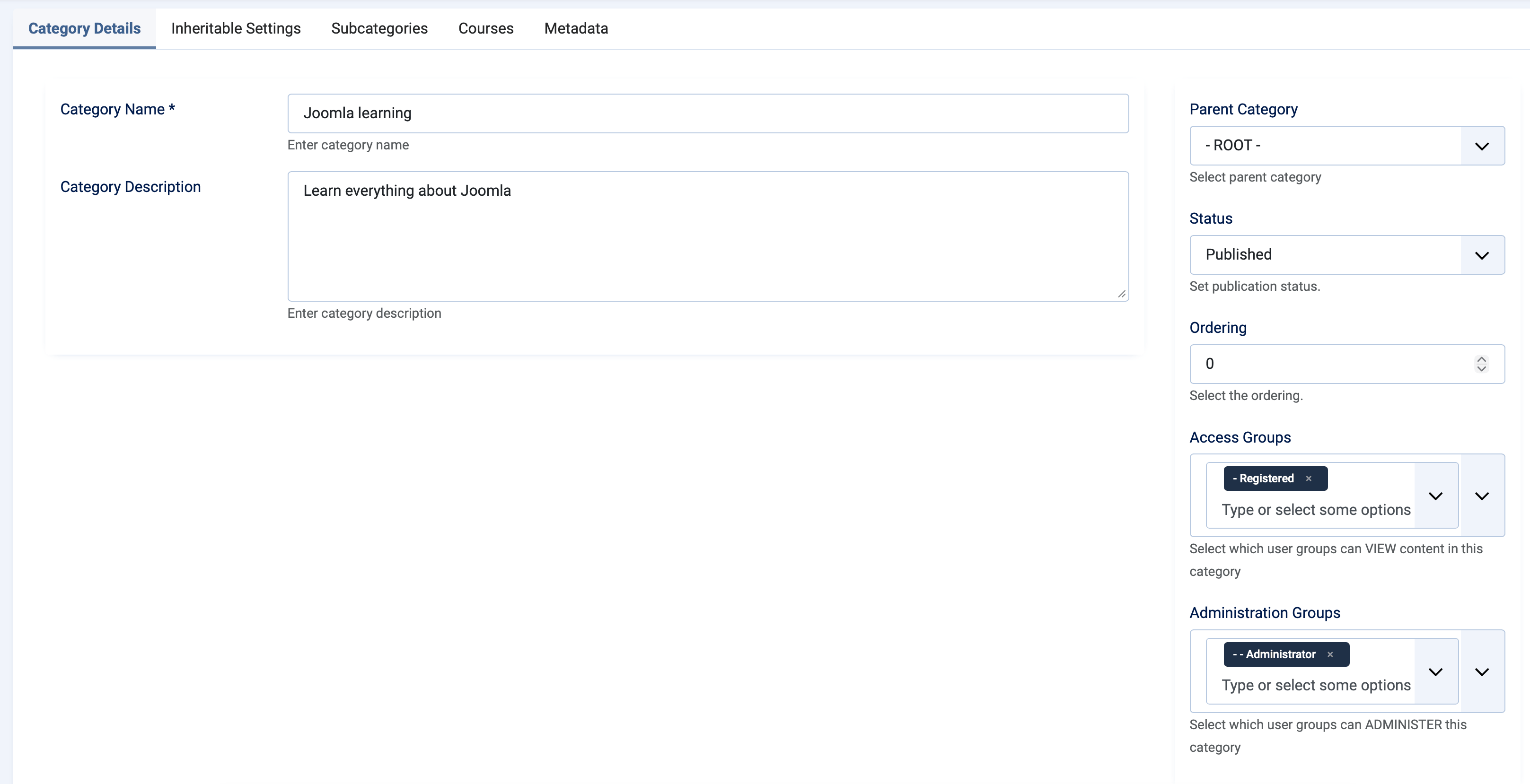
Click the New button in the toolbar. The category edit form opens with two tabs: Details and Settings.
-
Fill in details
Enter a Title (required) and an optional Description. In the right sidebar, set the Parent Category (select ROOT for a top-level category), Status and the two user group fields (see Access control below).
-
Configure settings (optional)
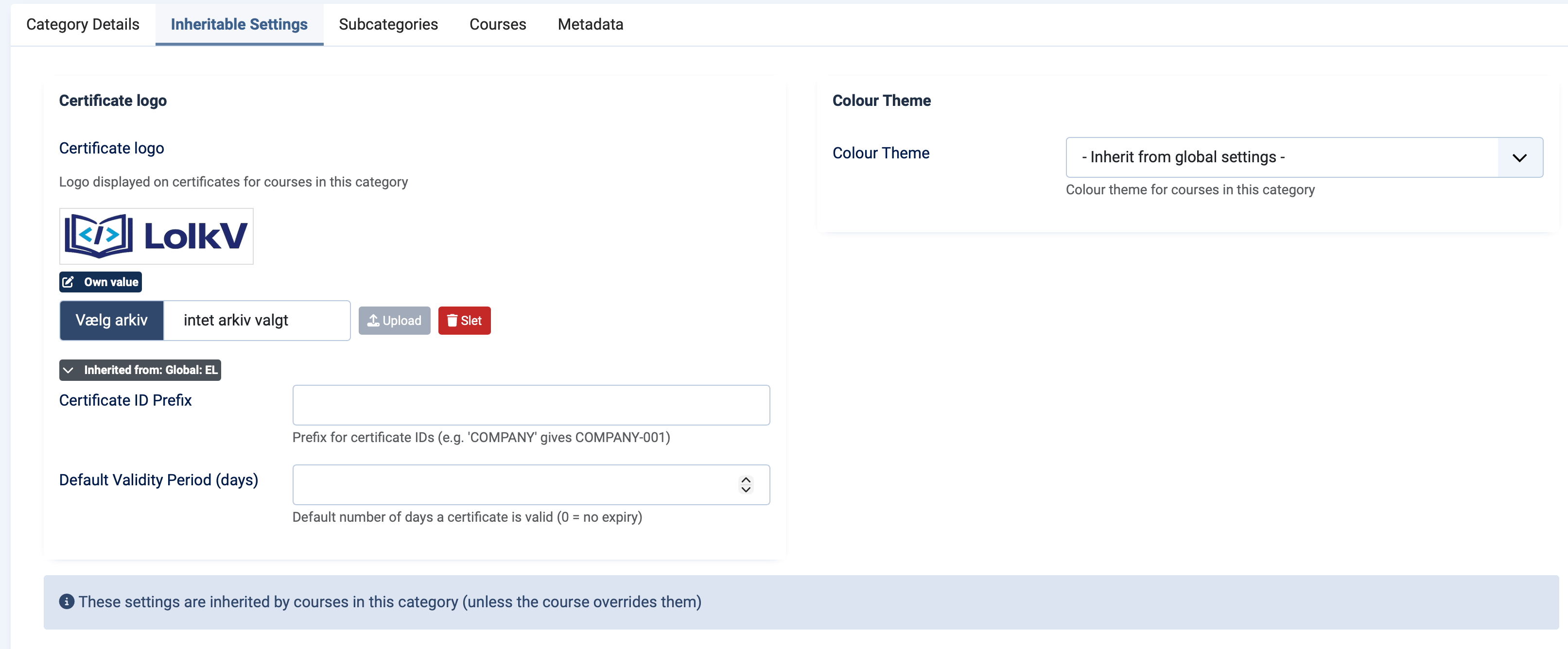
Switch to the Settings tab to configure certificate logo, certificate ID prefix, validity period and colour theme. All settings are optional — empty values inherit from the parent category or global configuration.
-
Save
Click Save or Save & Close in the toolbar.
-
Navigate to categories
From the frontend admin menu dropdown, click Categories. You can also navigate directly to
/courses/admin/categories. -
Click New Category
Click the New Category button at the top of the list.
-
Fill in Basic Info
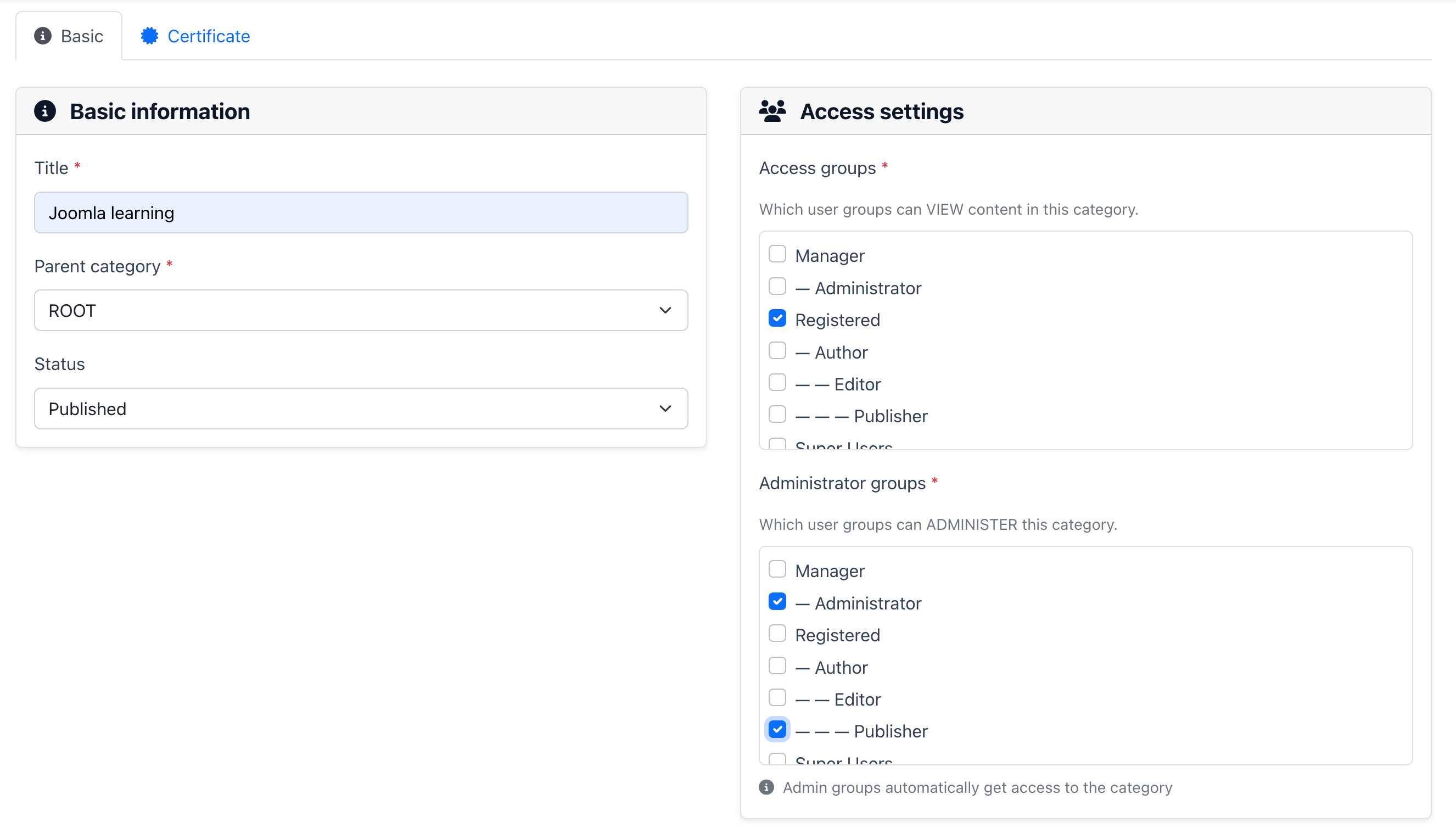
On the Basic Info tab, enter the Title (required), select the Parent Category, set the Status, and assign Access User Groups and Admin User Groups using the checkbox lists.
-
Configure certificate settings (optional)
Switch to the Certificate tab to upload a certificate logo and set ID prefix and validity period. Inherited values from parent categories are shown with badges.
-
Save
Click Save or Save and Close.
Category hierarchy
Categories use a nested set model, which means subcategories are fully contained within their parent. This has important implications:
- A subcategory inherits settings from its parent (certificate logo, colours, quiz messages) unless it defines its own values.
- A user with admin access to a parent category automatically has admin access to all its subcategories.
- You can create multiple levels of nesting (e.g. root → department → team).
The system has a hidden root node. Categories at the top level (parent = ROOT) are considered root categories. They cannot be deleted if they contain subcategories or courses.
Access control
Each category has two user group fields that control visibility and management access:
| Field | Purpose | Details |
|---|---|---|
| Access User Groups | Who can see courses in this category | Multi-select. Users in these groups (or their child groups) can view courses assigned to this category in the course catalog. |
| Admin User Groups | Who can manage courses in this category | Multi-select. Users in these groups can create, edit and delete courses, manage lessons, view statistics and handle reset requests for this category. |
Users with admin access to a category automatically have view access to its courses as well. You do not need to add admin groups to the access user groups list.
Inheritance of admin rights
Admin access is inherited downward through the category hierarchy. If a user has admin rights to a parent category, they automatically have admin rights to all subcategories underneath it. This makes it easy to set up department-level administrators:
- Assign the "Safety Training" root category admin rights to the "Safety Managers" user group.
- All subcategories (Fire Safety, First Aid, etc.) are automatically manageable by Safety Managers.
- Individual subcategories can have additional admin groups if needed.
For a complete overview of the permission system, see Permissions & Access.
Category settings and inheritance
The Settings tab (backend) or Certificate tab (frontend) lets you configure values that are inherited by all courses in the category. The inheritance follows the chain:
Available category settings
| Setting | Description |
|---|---|
| Certificate logo | Logo shown on certificates. Upload an image here to override the global default for all courses in this category. |
| Certificate ID prefix | Prefix for certificate numbers (e.g. SAFETY- instead of the global EL-). Useful for identifying which department issued a certificate. |
| Certificate validity period | Default number of days a certificate is valid. Set to 0 for no expiry. Leave empty to inherit from the parent category or global setting. |
| Colour preset | Visual theme for courses in this category. Select a preset (Standard, Green, Dark, Warm) or Custom to define your own colours. Select "Inherit from global" to use the global theme. |
| Custom colours | When colour preset is set to Custom: pick primary, secondary, success and accent colours using colour pickers. |
How inheritance is displayed
In both the backend and frontend editors, inherited values are shown with visual indicators:
- A grey badge with an arrow icon shows the source of the inherited value (e.g. "Global settings" or "Parent Category Name").
- A blue badge with a pencil icon indicates the category has its own value that overrides the inherited one.
- Empty fields automatically inherit from the next level up.
Managing categories
Viewing subcategories and courses
In the backend, when editing an existing category, two additional tabs appear:
- Subcategories — Lists all direct subcategories with their status and links to edit them.
- Courses — Shows all courses in this category as cards with images, status badges and edit links.
Filtering the category list
Both the backend and frontend category lists support filtering:
- Search — Search by category title.
- Level — Filter by root categories or subcategories.
- Status — Filter by published or unpublished.
Deleting a category
A category can only be deleted if it has no subcategories and no courses assigned to it. If you need to delete a category that has content, you must first move or delete the courses and subcategories.
If you want to hide a category temporarily without removing it, set its status to Unpublished instead of deleting it. Unpublished categories and their courses are hidden from students but remain accessible to administrators.
