
Statistics & reset requests
Track student progress, view quiz results, and handle quiz reset requests.
Statistics dashboard
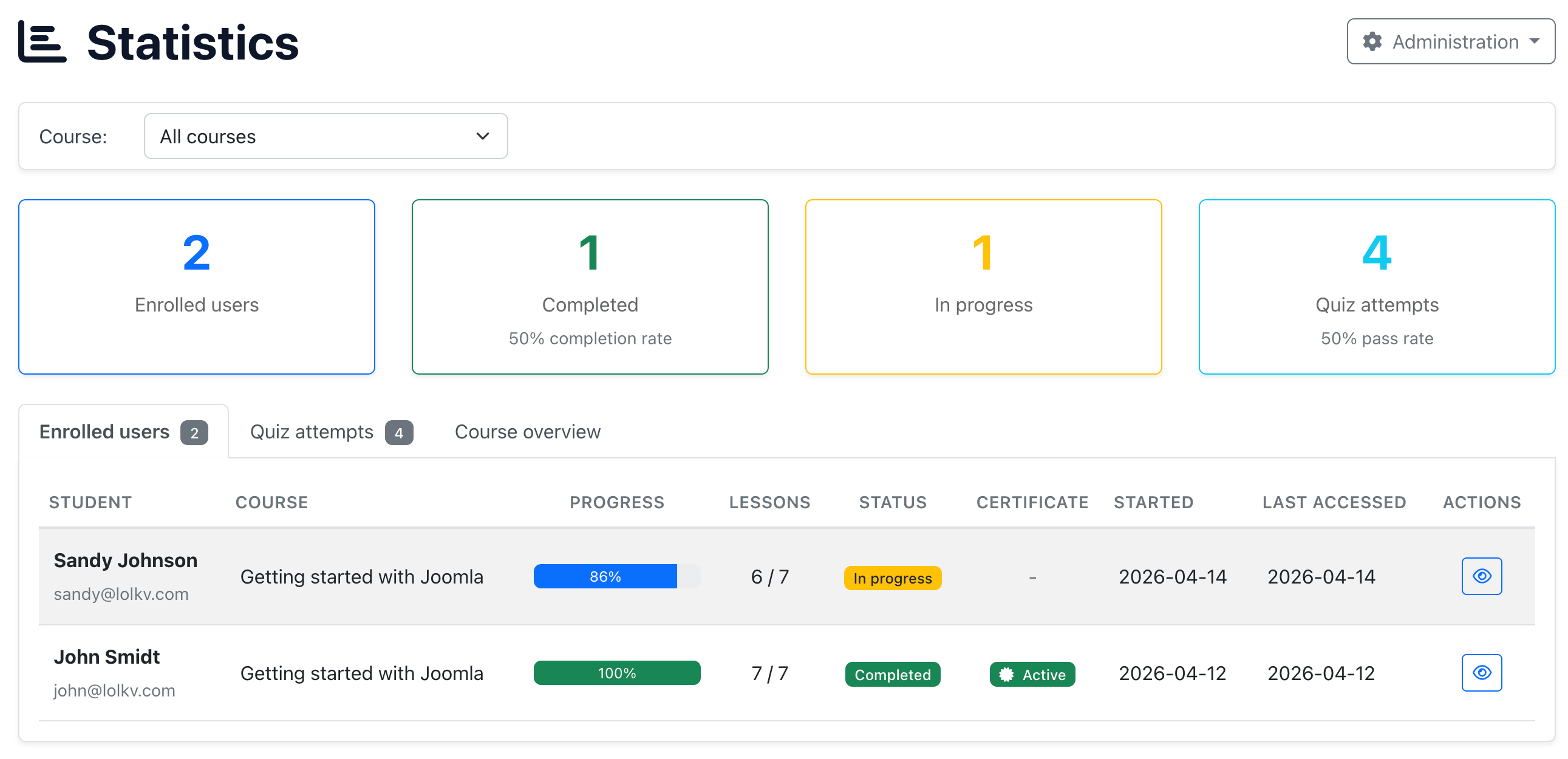
The statistics view gives you an overview of student progress and quiz performance across your courses. It is available in both the Joomla backend (Components → EasyLearn → Statistics) and the frontend admin menu (Statistics).
In the frontend admin, the statistics view only shows data for courses where the current user has admin access or view statistics access. See Permissions & Access for details.
Overview cards
Four summary cards at the top of the page show key metrics:
| Card | Shows |
|---|---|
| Enrolled Users | Total number of users enrolled in courses. |
| Completed | Number of completed enrolments, with completion rate percentage. |
| In Progress | Number of enrolments currently in progress. |
| Quiz Attempts | Total quiz attempts, with pass rate percentage. |
Course filter
Use the course dropdown at the top to filter all statistics for a specific course. When no course is selected, statistics show data across all courses you have access to.
Statistics tabs
Enrolled Users tab
Shows a table of all enrolled students with their progress details:
- Student name and email
- Course (shown when viewing all courses)
- Progress — Visual progress bar with percentage
- Lessons completed — Number of completed lessons vs. total
- Status — Not started, In progress, or Completed
- Started / Completed dates
Click on a student row to open a detail modal that shows their lesson-by-lesson progress, including which content blocks have been completed and timestamps.
Results are paginated with 25 entries per page.
Quiz Attempts tab
Shows a table of all quiz attempts with:
- Student name
- Quiz / Course
- Score — Points achieved vs. maximum
- Percentage
- Result — Passed or failed
- Attempt number
- Time spent
- Date
Results are paginated with 25 entries per page.
Course Overview tab
Only visible when no specific course is selected. Shows per-course statistics with enrolment counts, completion rates and quiz pass rates.
Reset functions
From the statistics view, administrators can reset student progress. These actions are available in the student detail modal:
| Action | What it does |
|---|---|
| Reset user progress | Deletes all lesson progress for a student in a specific course. The student starts fresh with 0% progress. Quiz attempts are preserved. |
| Reset quiz attempts | Deletes all quiz attempts for a student on a specific quiz. The student can retake the quiz from scratch. |
Both reset actions permanently delete the student's data. The progress or attempts cannot be recovered. A confirmation dialog is shown before proceeding.
Reset requests
When a student exhausts their quiz attempts (and the quiz is configured with "Lock for admin" on max attempts), they can send a reset request to the course instructor or administrator.
How it works
-
Student is locked out
After using all quiz attempts without passing, the student sees a message that the quiz is locked and they need to contact an instructor.
-
Student submits a request
The student clicks Contact Instructor and writes a reason for needing more attempts. This creates a reset request.
-
Administrator reviews
The request appears in the Reset Requests view (accessible from both backend and frontend admin menu).
-
Approve or reject
The administrator can approve (which resets the quiz attempts) or reject (with an optional note explaining why).
Reset requests view
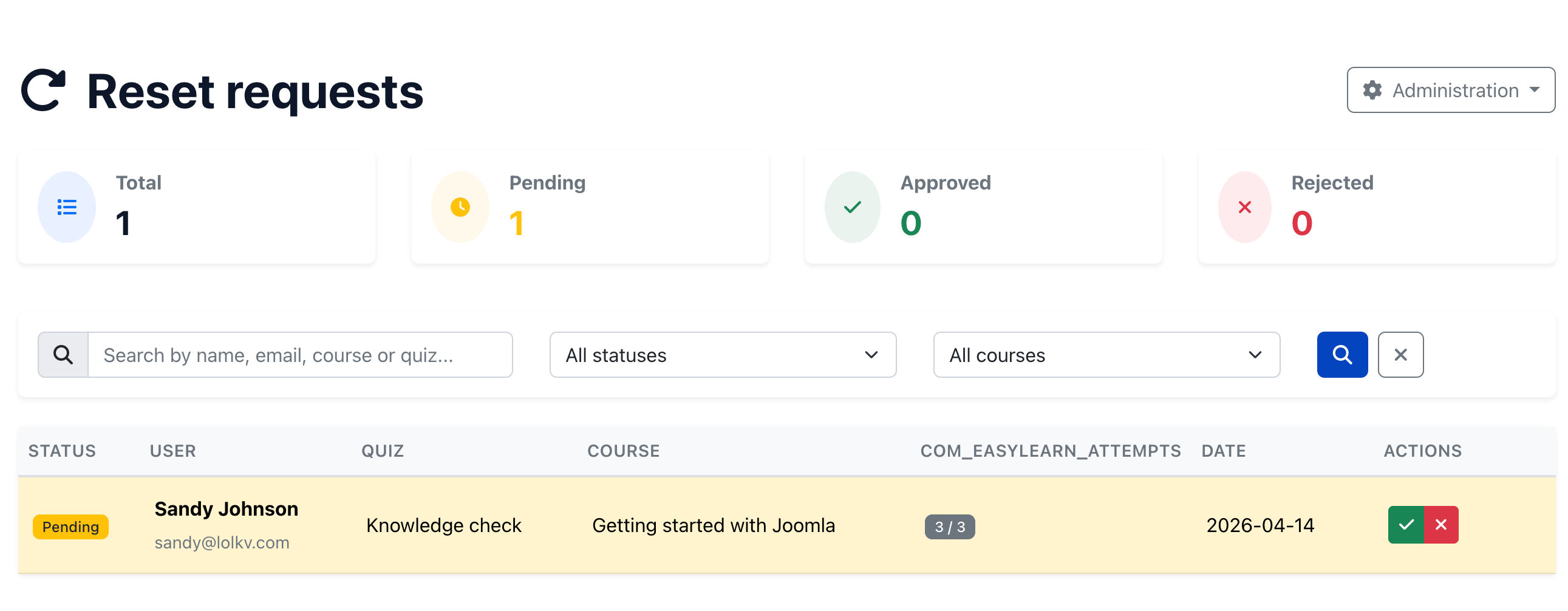
The reset requests view shows four status cards at the top (clickable to filter):
- Total — All requests.
- Pending (yellow) — Requests awaiting a decision.
- Approved (green) — Requests that have been approved.
- Rejected (red) — Requests that have been rejected.
Each request in the table shows:
- Student name and email
- Course and quiz name
- Reason written by the student
- Request date
- Approve and Reject buttons (for pending requests)
Filters
The reset requests list can be filtered by:
- Search — Search by student name or course title.
- Status — Pending, Approved or Rejected.
- Course — Filter by specific course.
In the frontend admin, only users who are linked to an instructor record (via the Linked users field on the instructor) or who have admin access to the course can see and handle reset requests. See Instructors and Permissions & Access.
