Certificates
Issue certificates automatically, configure expiry reminders via cron, and manage certificate renewal.
Overview
EasyLearn can automatically issue certificates when a student completes a course or passes a final exam. Certificates are printable, have a unique ID, and can optionally expire after a set number of days.
The certificate system includes:
- Automatic issuance — Certificates are generated the moment the requirement is met.
- Expiry dates — Optional validity period with automatic status tracking.
- Email notifications — Alerts when certificates are issued, about to expire, or expired.
- Renewal — Students can renew expired certificates by re-completing relevant content.
- Logo inheritance — Certificate logos follow the global → category → course hierarchy.
Enabling certificates for a course
Certificates are disabled by default. To enable them for a specific course:
-
Open the course editor
Edit the course in the backend or frontend admin.
-
Go to the Certificate tab
Switch to the Certificate tab (or Certificate Settings in the frontend admin).
-
Enable and configure
Set Enable Certificate to Yes and configure the settings below.
Certificate settings per course
| Setting | Options | Description |
|---|---|---|
| Certificate requirement | Completion / Exam passed | Completion: Certificate issued when all lessons are completed. Exam passed: Certificate issued when the student passes the final exam. |
| Validity period | 0–3,650 days | How many days the certificate is valid after issuance. Set to 0 for no expiry. Inherits from category or global if left at 0. |
| Certificate logo | Image upload | Logo displayed on the certificate. Inherits from category or global if not set. |
How automatic issuance works
Certificates are issued automatically — no manual action is needed:
- Completion-based: When a student completes the last lesson in a course, the system checks if all lessons are done and issues the certificate.
- Exam-based: When a student passes the final exam, the certificate is issued immediately with the exam score recorded.
Each certificate gets a unique number in the format: [PREFIX]-[YEAR]-[RANDOM] (e.g. EL-2026-A8SKK6). The prefix is configurable at global, category or course level.
When a certificate is issued, the student receives an email notification (if configured). The email template can be customised at global, category or course level. See Component Settings for available placeholders.
The certificate page
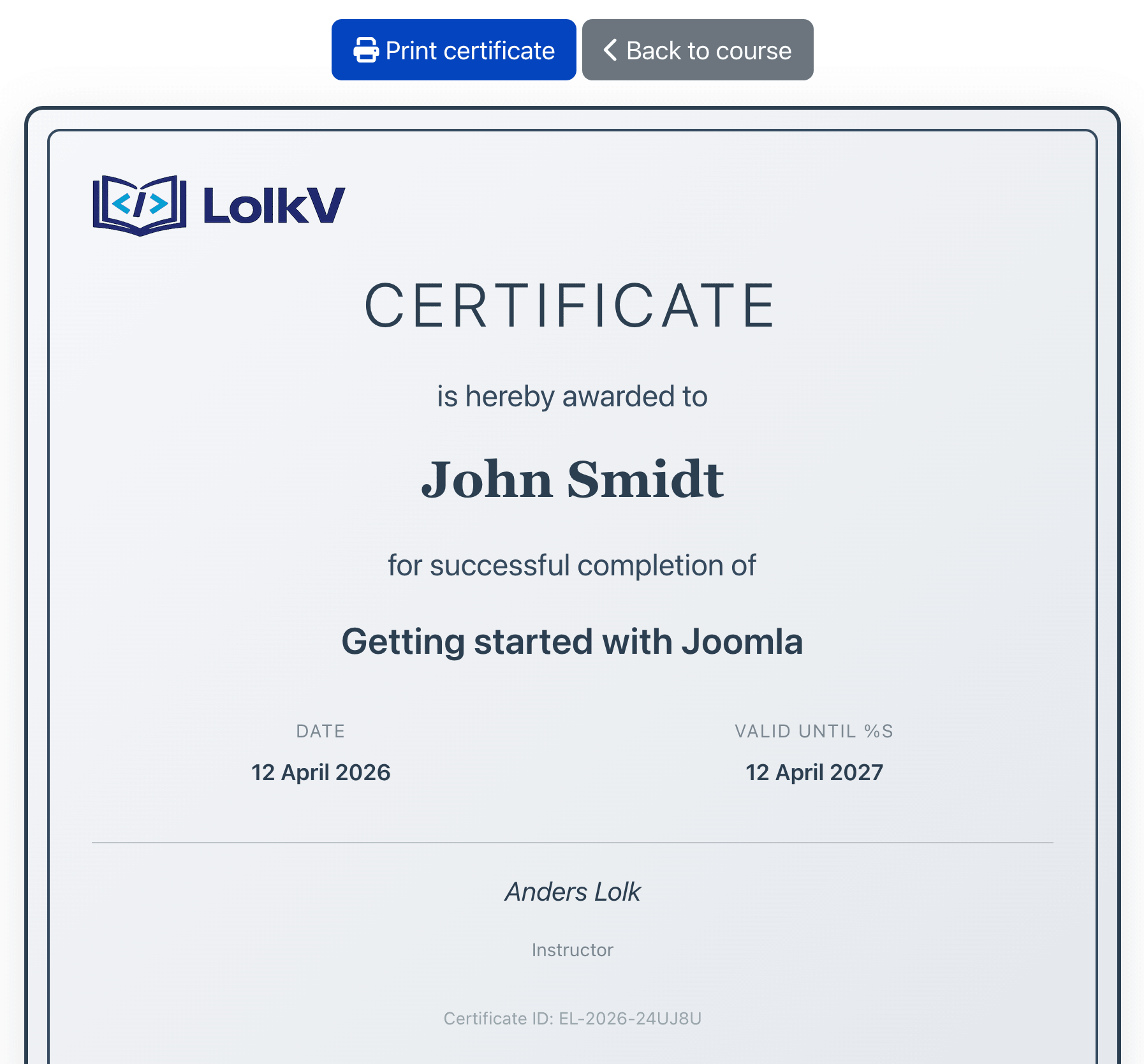
Each certificate has a dedicated printable page at /courses/certificate/[id]. The page shows:
- Certificate logo (inherited from course, category or global)
- Student name
- Course title
- Issue date and (if applicable) expiry date
- Exam score (if exam-based)
- Instructor name
- Unique certificate ID
- A Print button (hidden when printing)
Expired certificates display a red "EXPIRED" banner across the corner.
Certificate expiry
When a validity period is set, the certificate has an expiry date calculated as: issue date + validity days.
Expiry is checked in real time based on the expires_at date — not on a stored status field. This means certificates show the correct status even without the cron job running, but the cron job is needed for sending email reminders.
Certificate statuses
| Status | Meaning |
|---|---|
| Active | The certificate is valid and has not expired. |
| Expired | The expiry date has passed. |
| Superseded | The certificate has been replaced by a new one (after renewal). |
Email notifications
EasyLearn can send email notifications at various points in the certificate lifecycle. Notifications are configured per course on the Certificate Notifications tab.
Notification recipients
| Recipient | Description |
|---|---|
| Student | The student who owns the certificate. Enabled by default. |
| Instructor | The course instructor. Enabled by default. |
| Extra recipients | Additional email addresses (e.g. HR, compliance). Enter one email per line. Disabled by default. |
Notification timing
For each recipient group, you can enable notifications at these timing points:
| Timing | When it fires |
|---|---|
| 30 days before | 30 days before the certificate expires |
| 7 days before | 7 days before expiry |
| 1 day before | 1 day before expiry |
| On expiry | The day the certificate expires |
| 1 day after | 1 day after expiry |
| 7 days after | 7 days after expiry |
Each notification is sent only once (tracked in the database to prevent duplicates). Email templates can be customised at global, category or course level.
Setting up the cron job
Certificate expiry reminders are sent by a CLI command that must be run on a schedule. Without this cron job, certificates will still expire correctly, but no reminder emails will be sent.
The command
Options
| Option | Description |
|---|---|
--dry-run |
Preview which emails would be sent without actually sending them. Use this to test your configuration. |
--course-id=X or -c X |
Only process certificates for a specific course (by course ID). |
Setting up the cron job
The command should run once daily. Add this to your server's crontab:
Replace /path/to/your/joomla with the actual path to your Joomla installation.
Before setting up the cron job, run the command manually with --dry-run to verify it finds the right certificates and would send the right emails:
What the command does
- Marks expired certificates — Updates any active certificates that have passed their expiry date.
- Finds certificates matching notification criteria — Checks each timing point (30 days, 7 days, etc.) against all certificates with expiry dates.
- Sends emails — Uses course-specific email templates (falling back to category, then global templates). Supports all placeholders.
- Logs notifications — Records each sent notification to prevent duplicates on subsequent runs.
Logging
The command writes to a log file at /administrator/logs/easylearn_reminders.log and outputs progress to the console. Check this file if notifications are not being sent as expected.
If you are on shared hosting that does not support cron jobs, check if your hosting provider offers a "scheduled tasks" or "cron jobs" feature in the control panel (cPanel, Plesk, etc.). Most hosting providers offer at least basic cron support.
Certificate renewal
When a certificate expires and the course has a validity period, students can renew their certificate by re-completing relevant content.
How renewal works
-
Student sees the expired certificate
On the course page, the student sees that their certificate has expired, along with what they need to do to renew it.
-
Student clicks "Renew Certificate"
A confirmation dialog explains what will be reset. The student confirms to proceed.
-
Progress is reset
Based on the renewal settings, the student's progress is reset for the relevant lessons and/or quizzes.
-
Student re-completes the content
The student works through the required content again.
-
New certificate is issued
When the requirement is met again, a new certificate is issued automatically. The old certificate is marked as superseded.
Renewal reset options
| Reset type | What gets reset |
|---|---|
| Entire course | All lesson progress and quiz attempts in the course are deleted. The student starts completely fresh. |
| Specific items | Only selected lessons and/or quizzes are reset. Choose which items from a list when configuring. Useful when only part of the course needs to be re-done. |
The renewal type is configured per course on the Certificate Renewal tab. It is only available when certificates are enabled and a validity period is set.
Certificate logo inheritance
The logo shown on the certificate follows the standard inheritance chain:
This allows you to set a company logo globally, department logos at the category level, and course-specific logos where needed.
Managing certificates
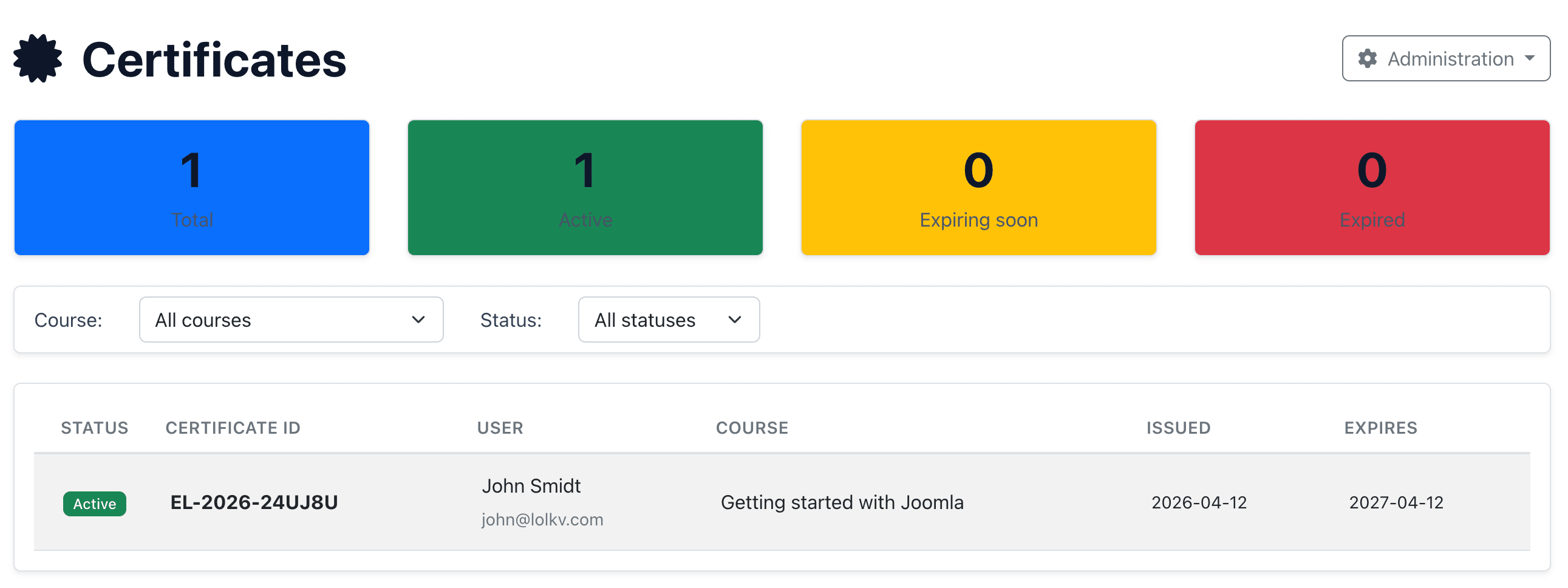
Administrators can view all issued certificates from the Certificates view (accessible from both the Joomla backend and the frontend admin menu).
The certificate list shows:
- Student name
- Course title
- Certificate number
- Issue date and expiry date
- Status (active, expired, superseded)
Four summary cards at the top show total, active, expiring soon and expired certificates.
Filters are available for course and status.