Quizzes & exams
Create interactive quizzes with three question types, configurable scoring, time limits and a final exam option.
Overview
Quizzes are added as content blocks within lessons. Each lesson can contain one or more quiz blocks, allowing you to test students at any point during the lesson.
There are two types of quizzes:
- Regular quiz — A knowledge check within a lesson. Can be used anywhere and as many times as needed.
- Final exam — A comprehensive test for the entire course. Only one final exam is allowed per course. Can have prerequisites (specific lessons or quizzes that must be completed first).
Creating a quiz
-
Add a quiz block
Open a lesson in the editor (backend or frontend admin). Click Add Content Block and select Quiz. A new quiz block is created with default settings.
-
Configure quiz settings
Expand the quiz block to access the settings panel. Configure the title, passing score, attempt limits, timer and other options (see Quiz settings below).
-
Add questions
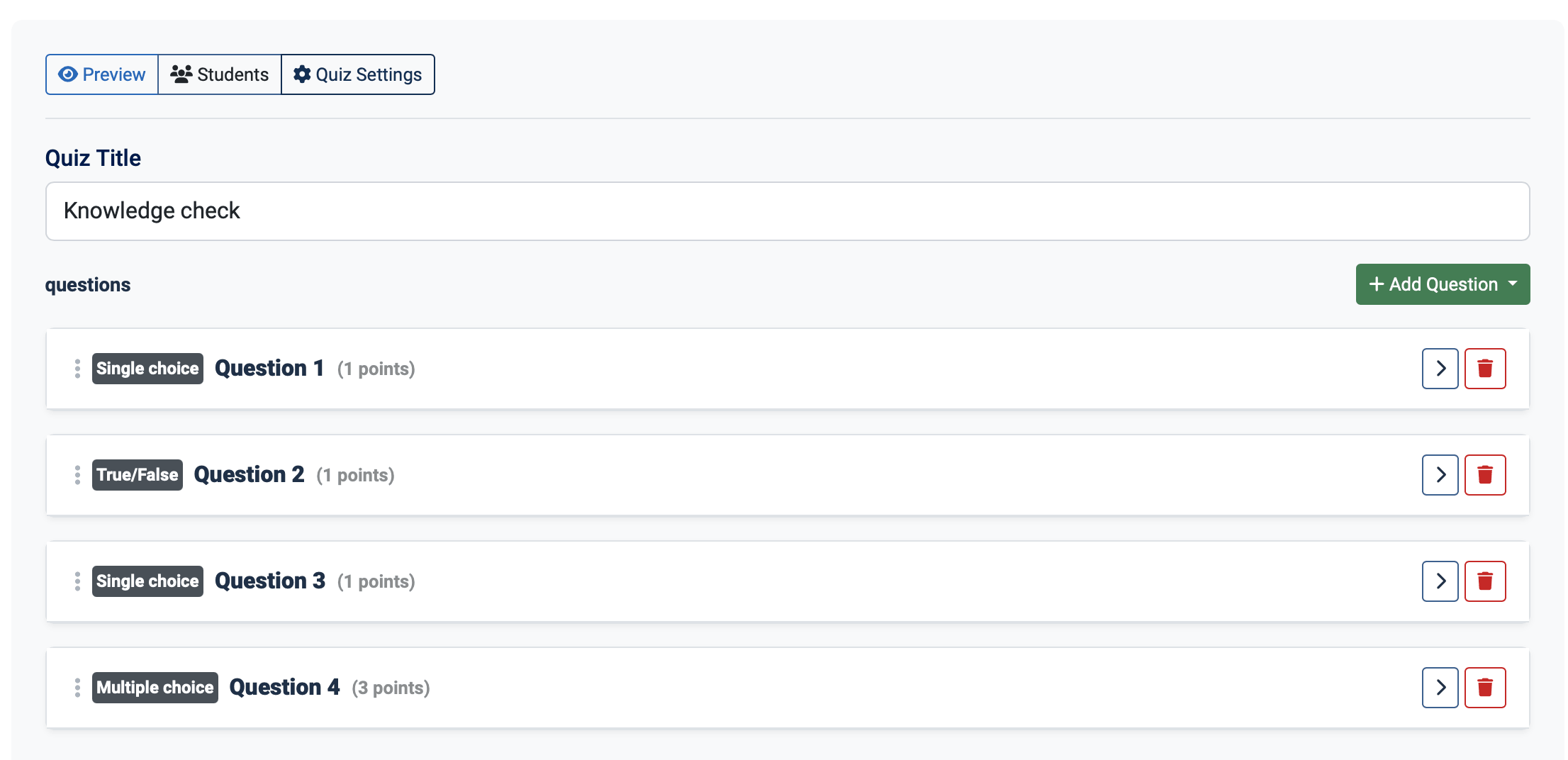
Click Add Question and select a question type. Enter the question text, add answer options and mark which options are correct. See Question types for details.
-
Preview and test
Use the Preview button to see how the quiz will look to students. This opens a read-only preview of the questions and layout.
Question types
True/False
A simple statement that the student marks as true or false. One answer is always correct.
- Scoring: All or nothing — full points if correct, zero if wrong.
- Points: Configurable per question.
Single choice
A question with multiple answer options where only one option is correct. Students select their answer using radio buttons.
- Scoring: All or nothing.
- Options: Minimum 2, no maximum. Add options using the Add Option button.
Multiple choice
A question with multiple answer options where one or more options can be correct. Students select answers using checkboxes.
- Scoring: Configurable (see below).
- Options: Minimum 2, no maximum. Mark one or more options as correct.
Multiple choice scoring modes
| Mode | How it works | Example |
|---|---|---|
| All or nothing | Student must select all correct options and no incorrect ones to get any points. | 3 correct answers out of 5 options. Student selects 2 correct + 1 wrong = 0 points. |
| Proportional | Partial credit based on (correct selections − wrong selections) / total correct options. Minimum 0 points. | 3 correct, question worth 6 points. Student selects 2 correct + 1 wrong = (2−1)/3 × 6 = 2 points. |
Use All or nothing for strict assessment where accuracy matters. Use Proportional for a fairer approach where partial knowledge is rewarded. The scoring mode applies to all multiple choice questions in the quiz.
Quiz settings
| Setting | Default | Description |
|---|---|---|
| Title | — | Quiz title shown to students. |
| Passing score | 70% | Minimum percentage required to pass. Inherits from course, category or global setting if not set. |
| Must pass | No | If enabled, the student must pass this quiz to continue to the next lesson (in fixed order) and to complete the lesson's progress. |
| Time limit | 0 (none) | Time limit in minutes. A countdown timer is shown. The quiz is automatically submitted when time runs out. |
| Max attempts | 0 (unlimited) | Maximum number of attempts allowed. Set to 0 for unlimited retakes. |
| Questions to show | 0 (all) | Show a random subset of questions per attempt. Set to 0 to always show all questions. |
| Randomise questions | No | Shuffle the order of questions on each attempt. |
| Randomise options | No | Shuffle the order of answer options within each question. |
| Show correct answers | Yes | After submission, show which answers were correct and incorrect. |
| Multiple choice scoring | All or nothing | Proportional or All or nothing (see scoring modes above). |
Question subset and minimum distribution
When using Questions to show to display a subset, you can set minimum counts per question type:
- Min true/false — Minimum number of true/false questions to include.
- Min single choice — Minimum number of single choice questions.
- Min multiple choice — Minimum number of multiple choice questions.
The system fills the minimum requirements first, then fills remaining slots from the pool of unselected questions (randomised if enabled).
When max attempts are reached
If a student uses all their attempts without passing, the system can respond in two ways:
| Setting | What happens |
|---|---|
| Reset course | The student is offered the option to reset the entire course. This deletes all lesson progress and quiz attempts, allowing them to start fresh. |
| Lock for admin | The quiz is locked and the student sees a message to contact their instructor. An administrator or instructor must manually unlock the quiz (via reset requests). |
Final exam
A final exam is a special quiz that serves as the comprehensive assessment for an entire course.
Key differences from regular quizzes
- One per course — Only one quiz can be marked as a final exam within a course.
- Prerequisites — You can require students to complete specific lessons or pass specific quizzes before they can start the final exam.
- Certificate trigger — When a course certificate requirement is set to "Exam passed", the certificate is issued automatically when a student passes the final exam.
Setting up prerequisites
When editing a final exam, you can add prerequisites from the same course:
- Lesson prerequisites — The student must have completed the specified lessons.
- Quiz prerequisites — The student must have passed the specified quizzes.
If a student tries to start a final exam without meeting the prerequisites, they see a message listing what they need to complete first.
To use a final exam as a certificate requirement, enable certificates on the course and set the Certificate requirement to Exam passed. The certificate is issued automatically when the student passes. See Certificates for full details.
Timer
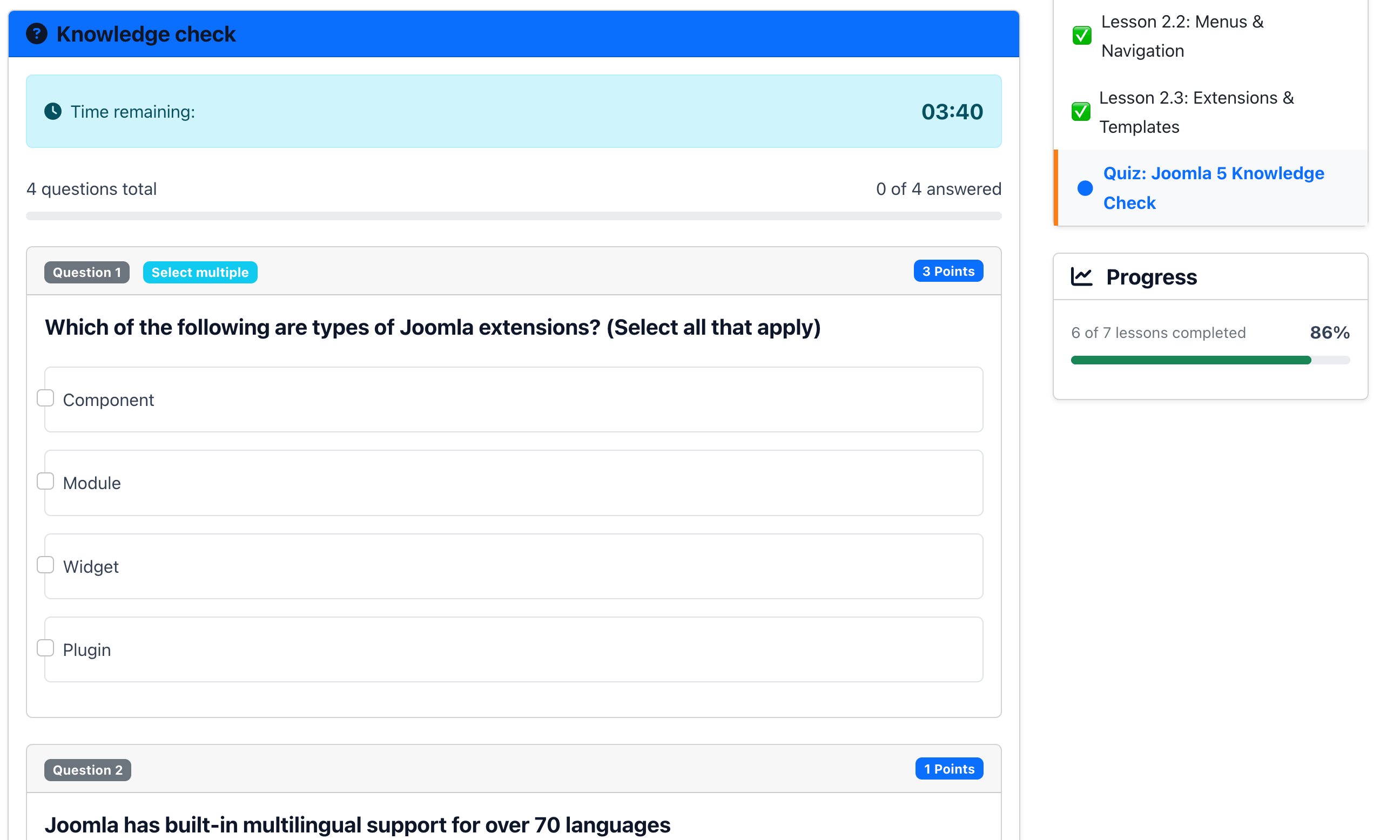
When a time limit is set, a countdown timer appears at the top of the quiz. The timer behaviour:
- Starts when the student begins the quiz.
- Counts down in real time.
- Changes colour to red when time is about to expire.
- Automatically submits the quiz when time runs out.
- Time spent is recorded in the attempt for reporting purposes.
Student answers are saved automatically as they are selected. If the timer expires or the student's browser closes unexpectedly, already-saved answers are preserved. The quiz can be submitted with the saved answers.
Student experience
When a student reaches a quiz block in a lesson:
- They see the quiz title and a Start Quiz button.
- After starting, questions are displayed as cards with answer options.
- Answers are auto-saved when selected.
- The student clicks Submit when ready (or the timer auto-submits).
- Results are shown immediately: score, percentage, pass/fail status and (optionally) correct answers.
- Custom pass/fail messages are displayed based on the quiz, course, category or global settings.
Pass/fail messages support placeholders: {score}, {max_score}, {percentage} and {passing_percentage}. These are replaced with the actual values when displayed.