Courses
Create and manage courses with modules, images, access control and certificate settings.
Overview
Courses are the central entity in EasyLearn. Each course belongs to a category and is assigned an instructor. Courses contain modules, which in turn contain lessons with content blocks.
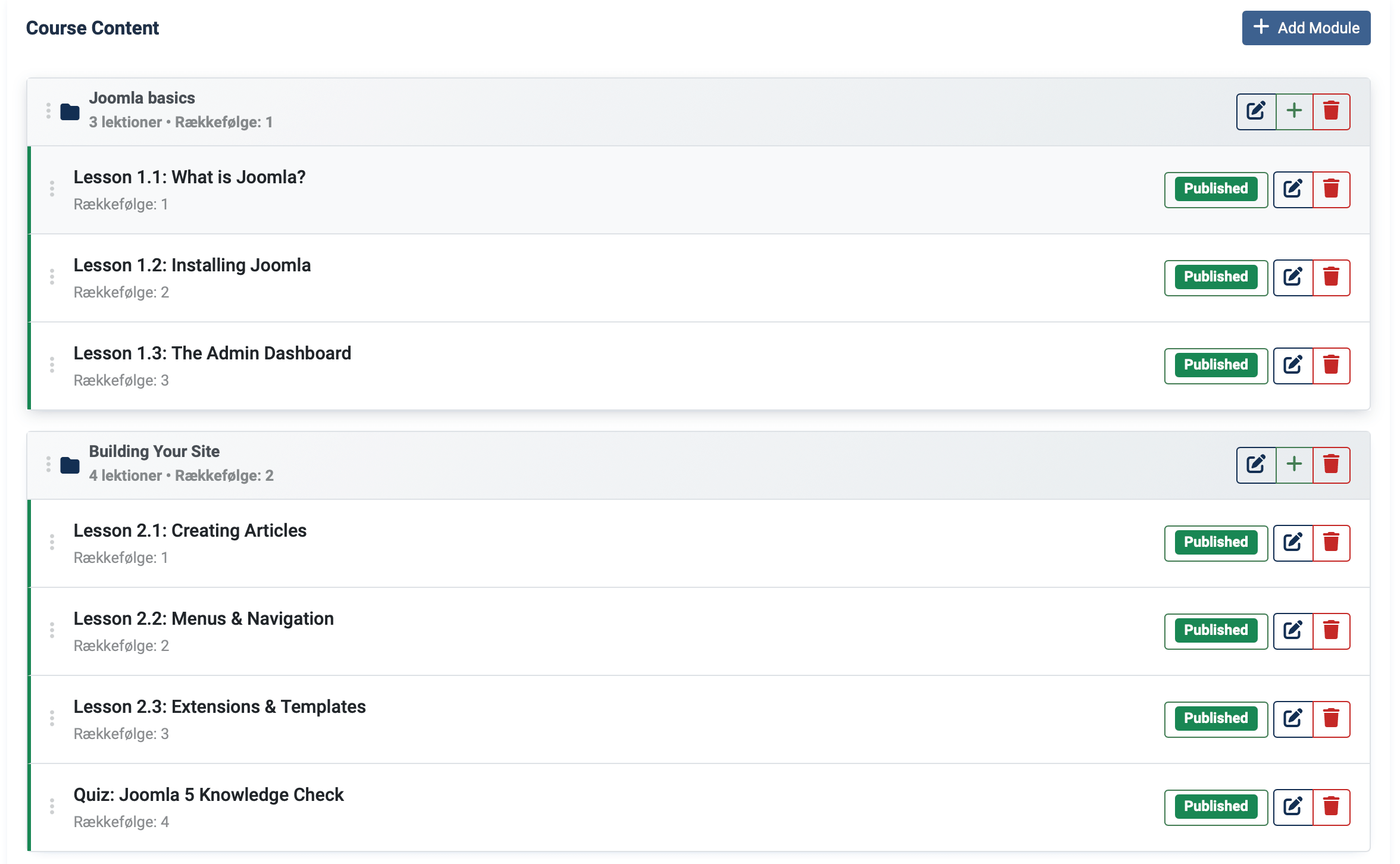
The course structure looks like this:
Creating a course
You need at least one category and one instructor before you can create a course, as both are required fields.
Go to Components → EasyLearn → Courses and click New. The course editor has multiple tabs:
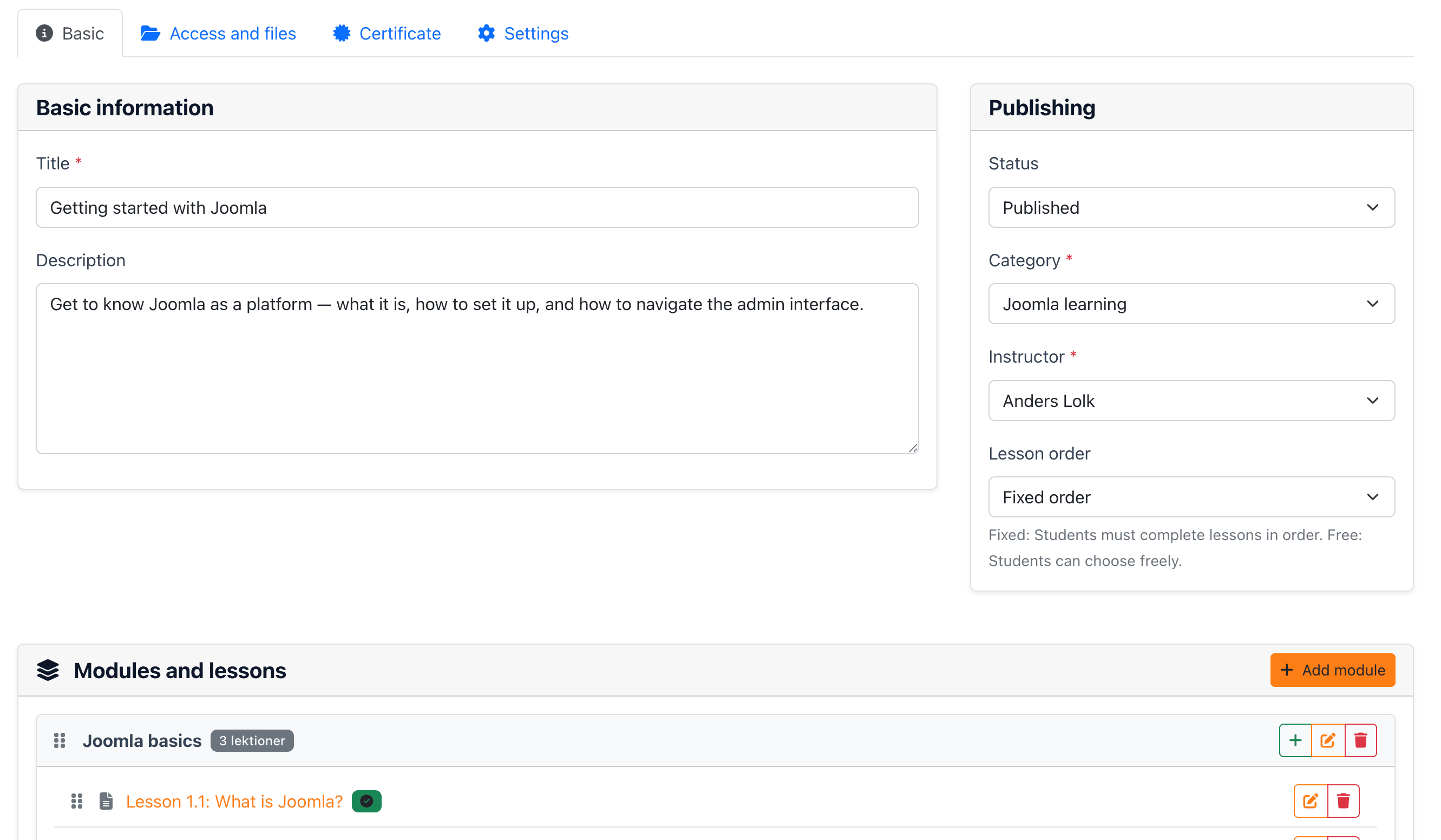
Details tab
The main content area contains:
- Title (required) — The course name shown everywhere.
- Description — Course description shown on the course detail page hero section. Max 500 characters.
- Hero title colour / Hero description colour — Text colour for the hero section overlay. Defaults to white (#ffffff).
The right sidebar contains:
- Status — Published or unpublished.
- Category (required) — Which category this course belongs to.
- Instructor (required) — The instructor responsible for this course.
- Lesson order — Fixed (students must follow the set order) or Free (students can access lessons in any order).
Course content (modules and lessons)
After saving the course for the first time, the Course Content section appears below the details. Here you can:
- Add modules (chapters) using the Add Module button.
- Add lessons within each module.
- Drag and drop to reorder modules and lessons.
- Click a lesson to open the lesson editor.
Media & Access tab
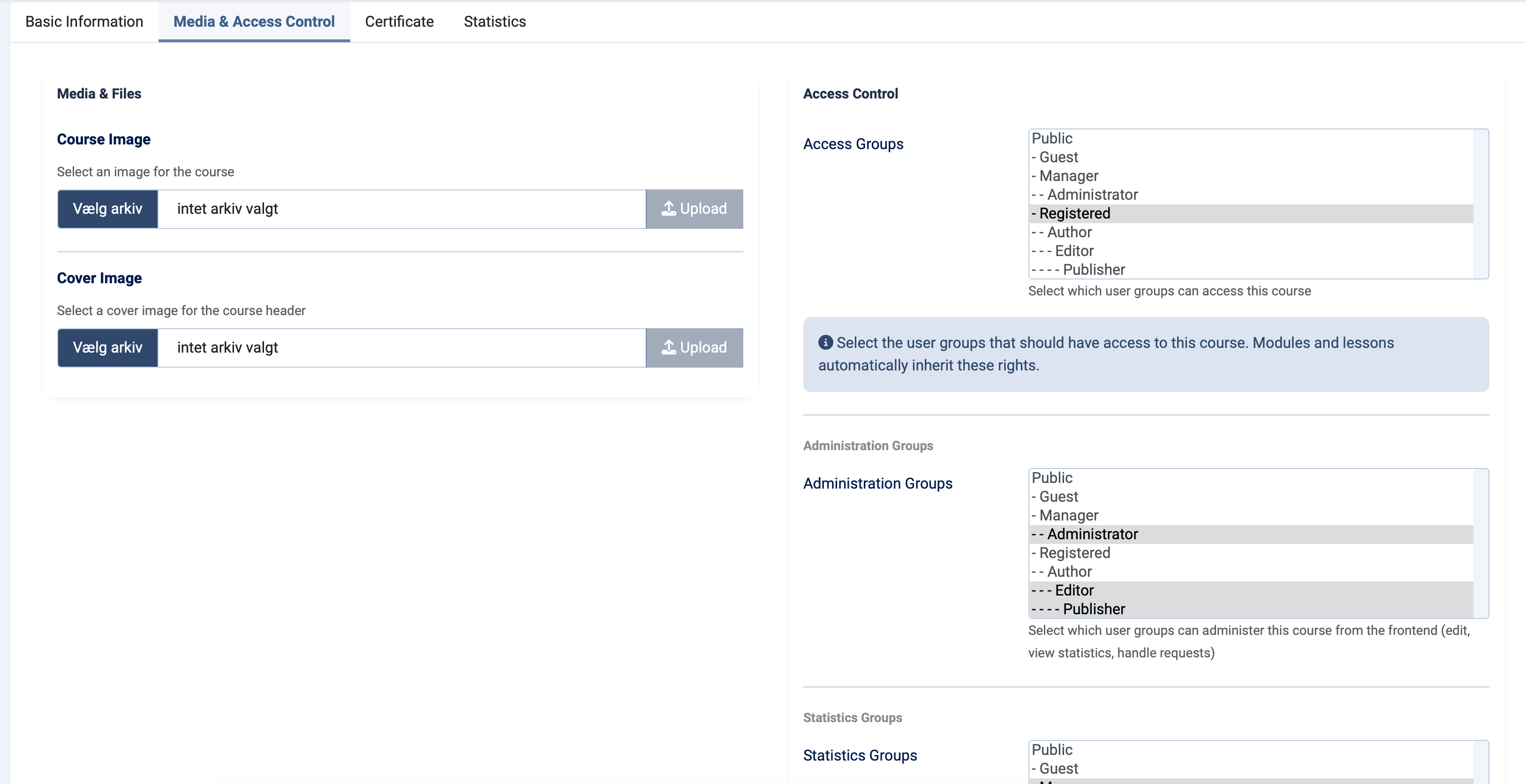
- Course image — Thumbnail shown in the course catalog.
- Cover image — Full-width hero background on the course detail page.
- Access groups — User groups that can view and enrol in this course. Uses hierarchical matching (child groups inherit access).
- Admin groups — User groups that can manage this course in the frontend admin. Uses hierarchical matching.
- View statistics groups — User groups that can view statistics and certificates for this course. Uses direct matching (no inheritance).
From the frontend admin menu dropdown, click Courses, then click New Course. The frontend editor has four tabs:
Basic Info tab
- Title (required)
- Short description
- Category (required)
- Instructor (required)
- Course image — Upload via drag-and-drop or file picker.
- Cover image — Hero background.
- Hero colours — Text colour pickers for the hero section.
Access & Files tab
- Lesson order — Fixed or free.
- Access groups, Admin groups, View statistics groups — Checkbox lists (same as backend).
- Course files — Upload files that students can download from the course page.
Certificate tab
Configure certificate settings for this course (see Certificates for details).
Settings tab
Course-level overrides for colour theme, quiz messages and email templates.
Course access control
Each course has three user group fields that control who can interact with it:
| Field | Matching | Purpose |
|---|---|---|
| Access groups | Hierarchical | Which user groups can see and enrol in the course. Users in child groups automatically inherit access from parent groups. |
| Admin groups | Hierarchical | Which user groups can manage the course (edit, add lessons, view all data). Child groups inherit admin rights. |
| View statistics groups | Direct | Which user groups can view statistics and certificates for this course. Only exact group membership counts — no inheritance. |
Users with admin group access to a course automatically have statistics and certificate viewing rights as well. You do not need to add them separately to the view statistics groups.
For a detailed explanation of how hierarchical and direct matching work, see Permissions & Access.
The Access groups you set here also power Auto-Enrollment: link a course to a user group and members are enrolled automatically when they join it — for example when they pay through Membership Pro or another subscription extension.
Course images
Each course can have two images:
| Image | Where it appears | Recommendation |
|---|---|---|
| Course image | Course catalog (thumbnail), course cards | Square or 4:3 ratio. If not set, the global default course image is used (if configured in component settings). |
| Cover image | Full-width hero section on the course detail page | Wide landscape format. The hero title and description are overlaid on this image, so choose images that work well with text on top. |
If your cover image has light areas, change the Hero title colour and Hero description colour to a darker colour for better readability.
Lesson order
The Lesson order setting controls how students navigate through lessons:
- Fixed — Students must complete lessons in sequence. The next lesson only becomes available when the current one is marked as completed. This is recommended for courses where content builds on previous lessons.
- Free — Students can access any lesson in any order. All lessons are available from the start. Good for reference material or courses where lessons are independent.
Course files
You can upload files to a course that students can download from the course detail page. Typical use cases include handouts, worksheets, reference documents or supplementary material.
Course files are managed from the Access & Files tab (frontend) or via a separate file section in the backend. The allowed file types and size limits are configured in the component settings.
Uploaded files are stored in a course-specific folder: /media/com_easylearn/uploads/[course-name]/files/. The folder name is automatically generated from the course title.
Modules
Modules are organisational containers within a course — think of them as chapters or sections. Each module has a title and can contain multiple lessons.
Managing modules
- Add a module — Click Add Module and enter a title.
- Rename a module — Click the module title to edit it inline.
- Reorder modules — Drag and drop modules to change their order.
- Delete a module — Click the delete button on a module. This will also delete all lessons within it.
When you delete a module, all lessons inside it and their content (blocks, quiz questions, uploaded files) are permanently deleted. This action cannot be undone.
Course-level settings
Courses can override settings inherited from their category or global configuration. These are the same inheritable settings available at category level:
- Certificate settings — Enable/disable certificate, requirement type, validity period, logo. See Certificates.
- Certificate notifications — Email reminders with configurable timing. See Certificates.
- Colour theme — Override the category colour scheme for this specific course.
- Quiz messages — Custom pass/fail messages for quizzes in this course.
- Email templates — Course-specific email templates for certificate notifications.
Any setting left empty at the course level automatically inherits from the category, which in turn inherits from the global configuration. See Component Settings for the full list of inheritable settings.
Managing courses
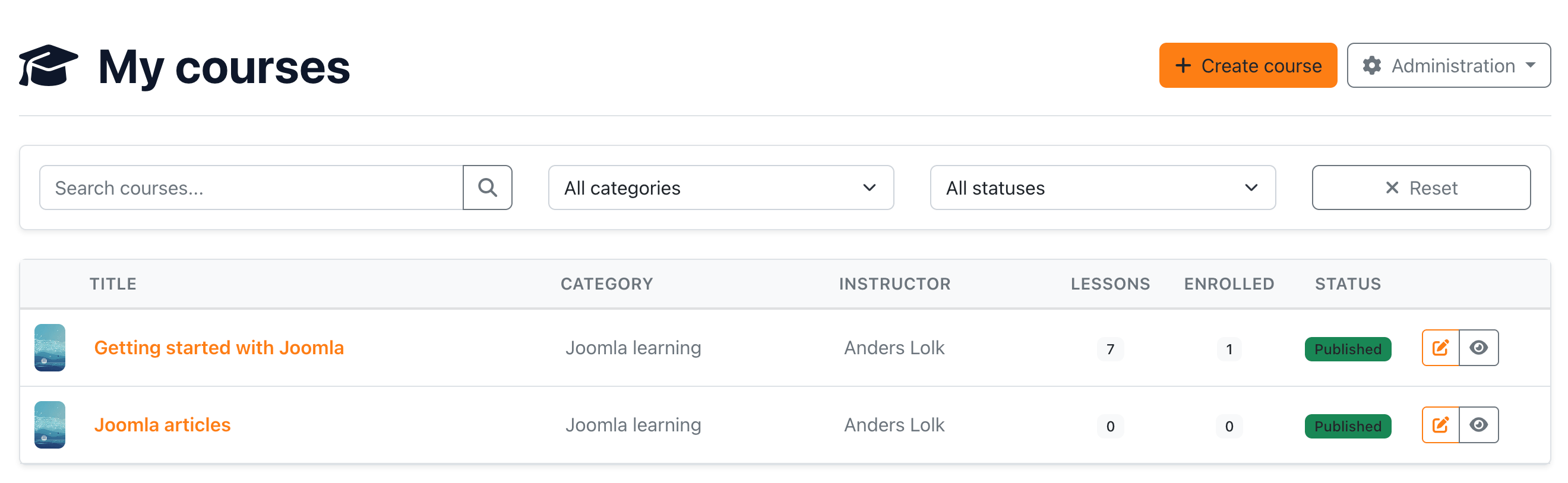
Course list
Both the backend and frontend admin provide a course list with filters:
- Search — Search by course title.
- Category — Filter by category.
- Status — Filter by published or unpublished.
In the frontend admin, the list only shows courses that the current user has admin access to.
Deleting a course
Courses support soft deletion. When you delete a course, it is marked as deleted but remains in the database. This preserves student progress and certificate records.
Versioning
If versioning is enabled in component settings, EasyLearn saves a version history each time a course is saved. You can restore a previous version from the backend course editor.