Lessons & content blocks
Build lesson content with text, video, audio, embedded media and quizzes using the block-based editor.
Overview
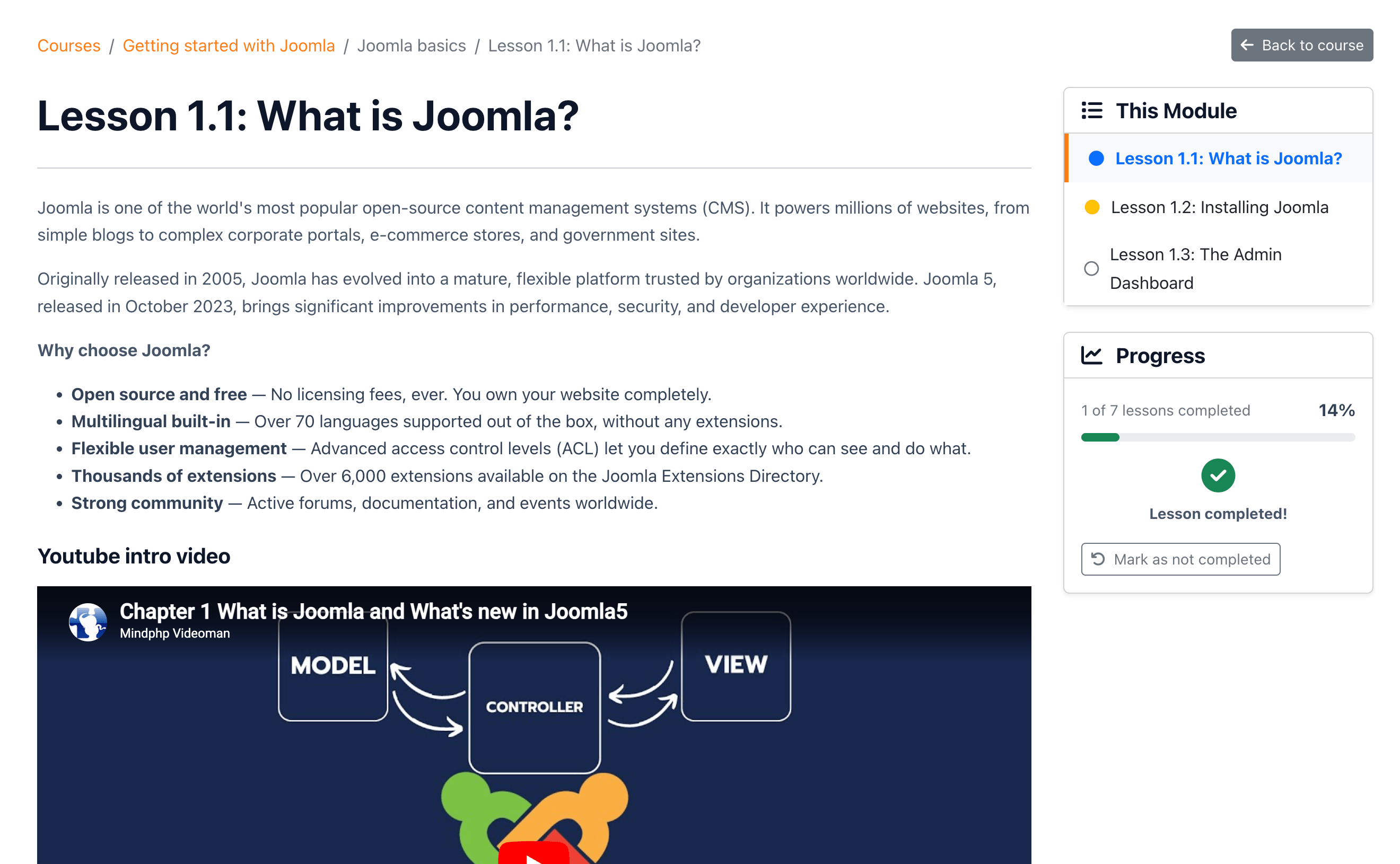
Lessons are the building blocks of courses. Each lesson belongs to a module within a course and contains content blocks — individual pieces of content that students work through sequentially.
A lesson can have any combination of content blocks in any order:
Creating a lesson
-
Open the course editor
Go to Components → EasyLearn → Courses and edit the course you want to add a lesson to.
-
Add a lesson to a module
In the Course Content section, find the module where you want the lesson and click Add Lesson. Enter a lesson title. The lesson is created and you can click on it to open the lesson editor.
-
Fill in lesson details
The lesson editor shows: Title (required), Description (short text, max 150 characters), Status and optionally a Lesson image.
-
Add content blocks
Below the lesson details, click Add Content Block and select a block type. See Content block types below for details on each type.
-
Open the course editor
From the frontend admin menu, go to Courses, then click the course you want to edit.
-
Add a lesson
In the course modules section, click Add Lesson within the desired module. Enter a title and save.
-
Edit the lesson
Click the lesson to open the editor. The frontend editor has two tabs: Content and Files (the Files tab only appears for existing lessons).
-
Add content blocks
On the Content tab, use the Add Content Block button to add blocks. The interface works the same as the backend editor.
Content block types
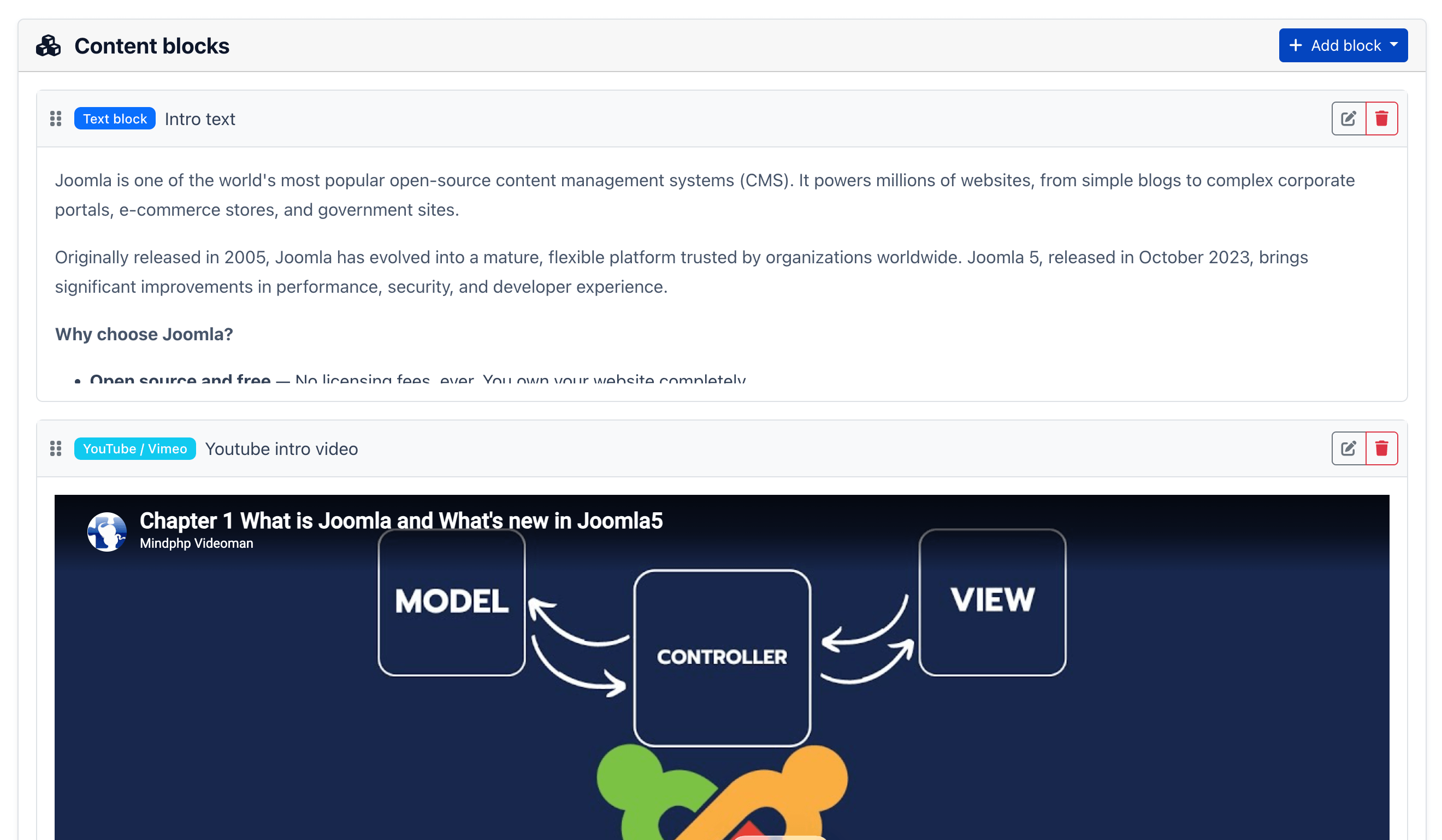
EasyLearn supports seven types of content blocks. Each block can be added, edited, reordered and deleted independently.
Text block
A rich text block using your Joomla editor (TinyMCE, JCE or another configured editor). Use it for written explanations, instructions, formatted text with images and links.
| Field | Description |
|---|---|
| Title | Internal title (shown in the block list, not visible to students). |
| Content | Rich text editor. Supports HTML, images, links, tables and formatting. |
Text blocks are marked as completed based on estimated reading time. The student needs to have the block visible on screen for a calculated duration based on word count.
Video block
Upload a video file directly to your server. Suitable for locally hosted training videos.
| Field | Description |
|---|---|
| Title | Internal title for the block list. |
| Video file | Upload via the file picker. Supported formats are configured in component settings (default: MP4, WebM, Ogg, Mov). |
| Autoplay | Start playing automatically when the student reaches the block. |
| Show controls | Show the video player controls (play, pause, volume, seek). |
Video uploads use chunked uploading to handle large files. The maximum file size is set in component settings (default: 2,048 MB). Videos are stored in /media/com_easylearn/uploads/[course-name]/lektioner/videos/.
Progress tracking: A video block is marked as completed when the student has watched at least 95% of the video.
Embedded video block
Embed a YouTube or Vimeo video by pasting the URL. No upload needed — the video streams from the external service.
| Field | Description |
|---|---|
| Title | Internal title. |
| Video URL | Paste a YouTube or Vimeo URL. The system automatically detects the platform and extracts the video ID. |
| Start time | Start the video at a specific time (in seconds). Default: 0. |
| Autoplay | Auto-start playback. |
| Loop | Repeat the video when it finishes. |
| Show controls | Display player controls. |
A live preview of the embedded video is shown while editing. Progress tracking: Completed after 10 seconds of visibility.
Audio block
Upload an audio file for podcasts, narration or sound-based learning material.
| Field | Description |
|---|---|
| Title | Internal title. |
| Audio file | Upload via file picker. Default formats: MP3, WAV, Ogg, AAC, M4A, FLAC. |
| Autoplay | Auto-start playback. |
| Show controls | Display the audio player controls. |
Audio files are stored in /media/com_easylearn/uploads/[course-name]/lektioner/audios/. Maximum size is configured in component settings (default: 512 MB).
Progress tracking: Completed when 95% of the audio has been played.
PDF block
Embed a PDF document directly in the lesson. The PDF is displayed in an inline viewer so students can read it without downloading.
Link block
Add a link to an external resource. The link opens in a new browser tab when the student clicks it.
Quiz block
Add an interactive quiz within the lesson. Quiz blocks are covered in detail in the Quizzes & Exams guide.
Progress tracking: For quizzes without the "must pass" requirement, the block is completed after the first attempt. For quizzes that must be passed, the block is completed only when the student achieves the passing score.
Managing content blocks
Adding a block
Click the Add Content Block button below the existing blocks. A dropdown appears with all available block types. Select a type and the new block is added at the bottom of the list. Each block type has a colour-coded badge to help identify it at a glance.
Editing a block
Each block has two states: a collapsed preview (showing the title and type) and an expanded editor. Click a block to toggle between states. Changes are saved when you click the save button within the block or when you save the lesson.
Reordering blocks
Drag and drop blocks to change their order. The order determines how students see the content — blocks are displayed top to bottom.
Deleting a block
Click the delete button on a block to remove it. For video and audio blocks, the uploaded file is also deleted from the server. A confirmation dialog is shown before deletion.
Deleting a quiz block also deletes the quiz, all its questions and all student attempts. This cannot be undone. If students have already completed the quiz, their progress data is lost.
Lesson files
In addition to content blocks, you can attach downloadable files to a lesson. These are separate from the content blocks and appear in a dedicated Files section below the lesson content.
Typical use cases: worksheets, reference PDFs, templates or any supplementary material students need.
The allowed file types and maximum size are configured in component settings.
How progress tracking works
EasyLearn tracks progress at three levels:
| Level | Completed when |
|---|---|
| Block | Depends on block type: text (reading time), video/audio (95% played), embedded (10 seconds visible), quiz (first attempt or passed). |
| Lesson | All content blocks in the lesson are completed. |
| Course | All published lessons in the course are completed. |
Progress is saved automatically as students interact with content. Video and audio positions are tracked so students can resume where they left off.
When a course uses fixed lesson order, students must complete the current lesson before the next one becomes available. With free order, all lessons are accessible regardless of progress.