
Access levels
Create and manage Joomla access levels (view levels) to control content visibility.
Overview
Access levels (also called view levels) control which content is visible to which user groups in Joomla. Every article, menu item and module in Joomla has an access level that determines who can see it.
Frontend UserManager lets your frontend administrators create, edit and delete access levels without needing Joomla backend access.
User groups control what users can do (permissions). Access levels control what users can see (content visibility). An access level is assigned one or more user groups — users in those groups can see content at that level.
Access level list
The list shows all visible access levels with these columns:
| Column | Description |
|---|---|
| Title | Access level name. Click to edit. Sortable. |
| User Groups | Badges showing which user groups are assigned to this level. Shows "No user groups" if none are assigned. |
| ID | Access level ID. Sortable. |
Filters include a search box (by title) and a limit selector.
Joomla's built-in system access levels (e.g. "Public", "Registered", "Special", "Super Users") can be hidden from this list using the Hidden View Levels setting in component settings. This prevents frontend admins from accidentally modifying system-critical levels.

Creating an access level
-
Click New Level
Click the green New Level button at the top of the list.
-
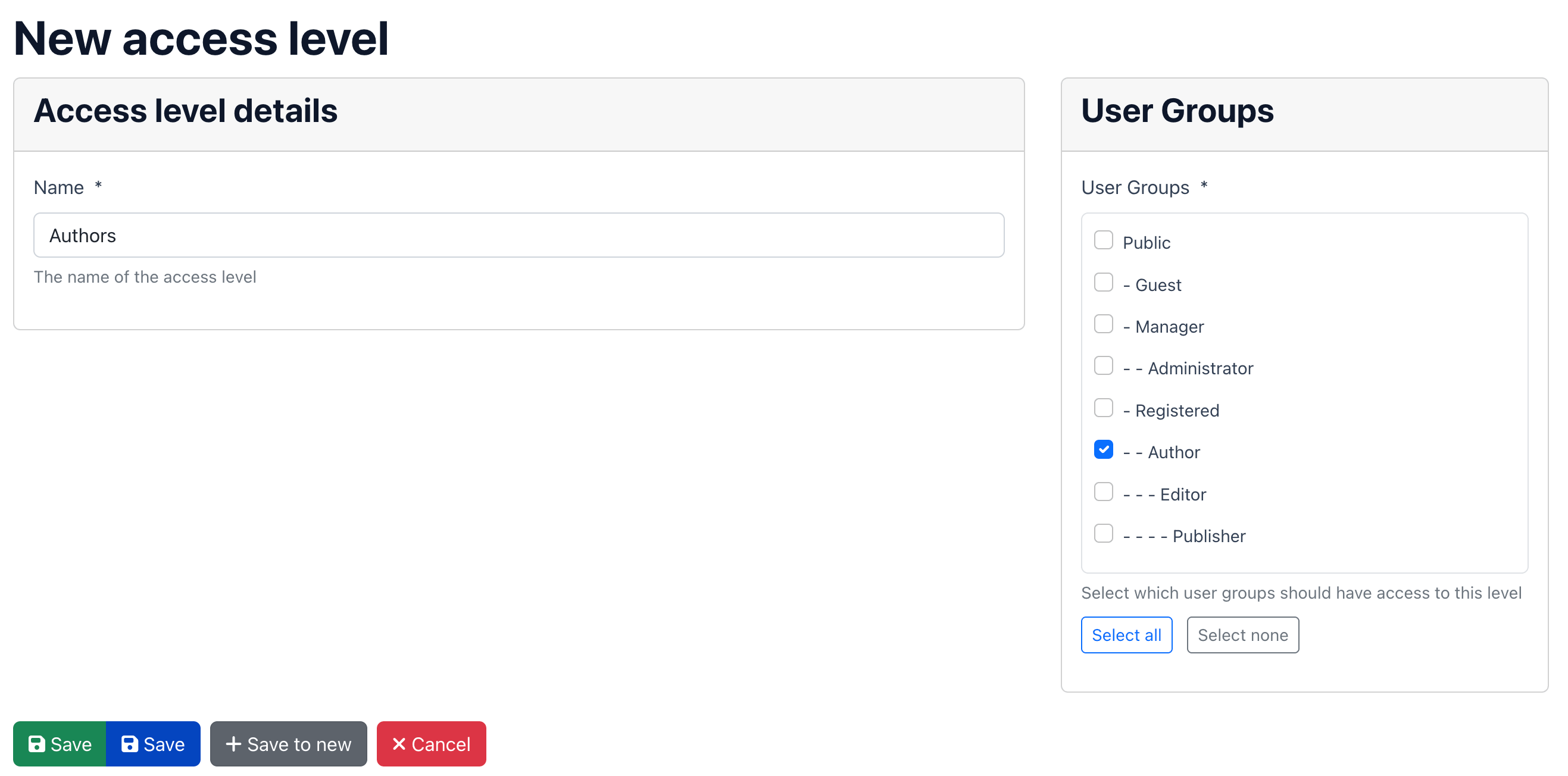
Enter a title
Enter the Title (required) for the access level. Use a descriptive name like "Company A Staff" or "Premium Members".
-
Select user groups
In the sidebar, select at least one user group from the scrollable checkbox list. Users in the selected groups will be able to see content assigned to this access level. Use the Select All or Deselect All buttons for convenience.
-
Save
Click Save to save and stay on the form, or Save & New to save and create another level.
Editing an access level
Click the title in the list to edit. You can change the title and modify the assigned user groups. The form is identical to the create form.
Deleting access levels
Select levels using the checkboxes and click Delete Levels. A confirmation dialog is shown.
Deleting an access level affects all content that uses it. Articles, menu items and modules assigned to the deleted level may become inaccessible. Make sure no content depends on the level before deleting it.
Practical example
A typical setup for a multi-tenant environment:
| Access Level | Assigned Groups | Purpose |
|---|---|---|
| Company A Access | Company A, Company A → Sales, Company A → HR | All Company A content is only visible to Company A users. |
| Company B Access | Company B, Company B → Warehouse | All Company B content is only visible to Company B users. |
| All Staff Access | Company A, Company B | Shared content visible to all organisations. |
Assign these access levels to articles, menu items and modules to control what each organisation can see on the site.
