
User groups
Create and manage Joomla user groups with hierarchical display and administrator assignments.
Overview
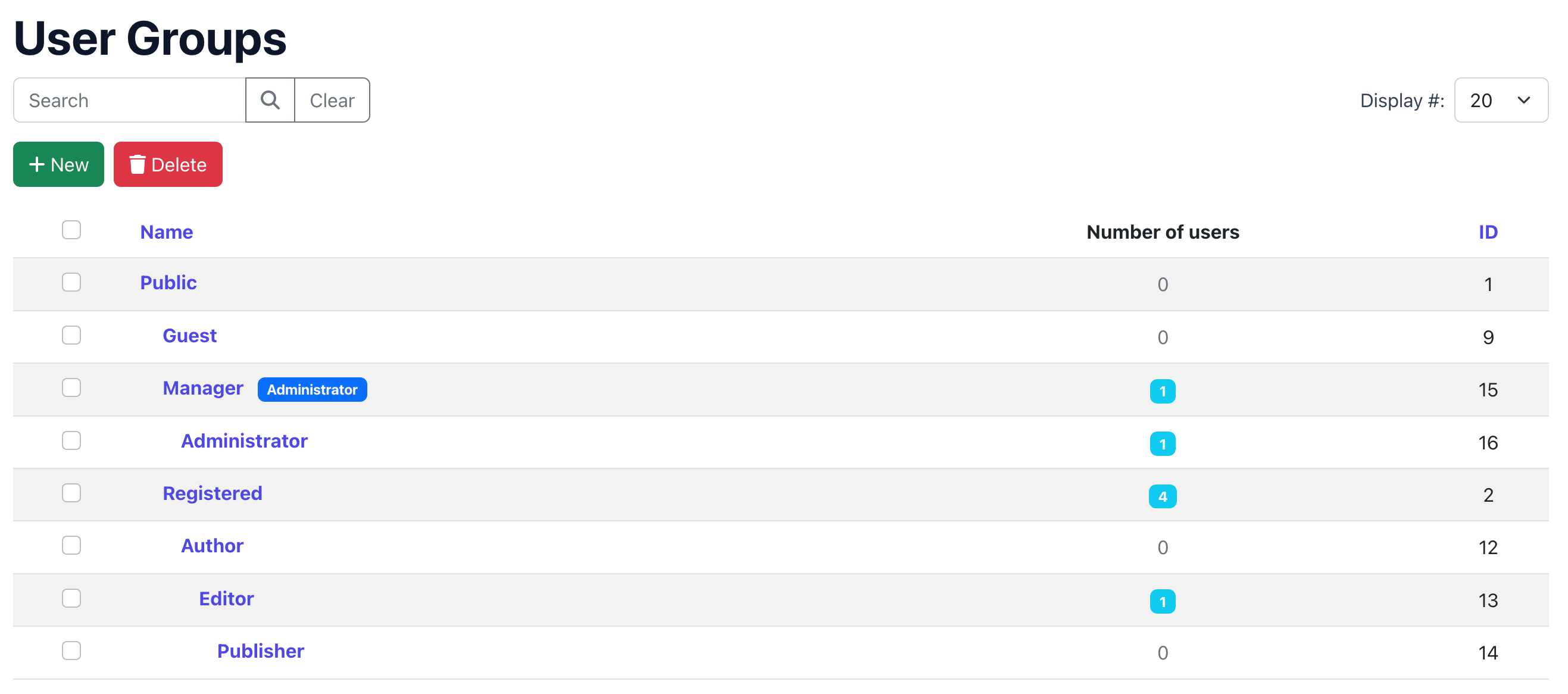
The user groups view lets you manage Joomla's user groups from the frontend. Groups are displayed in a hierarchical tree structure, showing the parent-child relationships with indentation.
User groups are fundamental to Joomla's permission system. They determine what users can access and do on your site. Frontend UserManager gives your frontend administrators the ability to manage these groups without needing Joomla backend access.
In hierarchical mode, only Frontend Superusers can manage user groups. In Joomla standard mode, users with core.manage permission on com_users can access it. See Permissions & Access.
User group list
The list shows all visible user groups with these columns:
| Column | Description |
|---|---|
| Title | Group name with hierarchical indentation (dashes show nesting level). Click to edit. Sortable. |
| Administrator | Blue badge shown if the group is configured as an admin group. Only visible in hierarchical mode. |
| Users | Number of users in this group. Shown as a blue badge if > 0. |
| ID | Joomla group ID. Sortable. |
Filters include a search box (by title) and a limit selector for items per page.
Creating a user group
-
Click New Group
Click the green New Group button at the top of the list.
-
Enter a title
Enter the Title (required) for the group.
-
Select a parent group
Choose the Parent Group (required). This determines where the group sits in the hierarchy. Groups inherit permissions from their parent.
-
Set administrator status (hierarchical mode only)
If you are using hierarchical permission mode, the Administrator field appears. Set it to Yes to make this an admin group that can manage users within its hierarchy.
-
Save
Click Save & Close.
Editing a user group
Click a group's title in the list to edit it. You can change the title, parent group and administrator status. The form layout adapts based on the permission mode:
- Hierarchical mode — Two columns: title + parent on the left, administrator field on the right.
- Joomla standard mode — Full-width layout with title + parent only (no administrator field).
Automatic access level assignment
When you create a user group that is marked as an administrator group, it can be automatically assigned to specific access levels (configured via Admin Auto View Levels in component settings).
This ensures that admin users can immediately see content restricted to those access levels without manual configuration.
Deleting user groups
Select groups using the checkboxes and click Delete Groups. A confirmation dialog is shown.
Joomla prevents deletion of groups that have child groups or users assigned to them. Move users and child groups to another group before deleting. Also be aware that deleting a group may affect access levels that reference it.
Understanding the hierarchy
Joomla user groups use a tree structure (nested set model). Key concepts:
- Parent group — Every group (except the root) has a parent. Permissions flow downward from parent to children.
- Child groups — Groups nested under a parent. They inherit the parent's permissions and can have additional ones.
- Depth — The nesting level is shown visually with dash indentation in the list and dropdowns.
A common pattern is to create a parent group per organisation (e.g. "Company A") with child groups for departments (e.g. "Company A → Sales", "Company A → HR"). An admin group (e.g. "Company A → Admins") can then manage all users within the Company A branch.
